What you need
The employee app is where you clock in and clock out, and where you see your attendance records. You use it on your phone, in the web browser.
- An invitation from your employer. Your employer's admin adds you and sends an email to you.
- The email address where you received the invitation.
- A phone with internet, and with a front camera and location (GPS) that you can switch on.
Accept the invitation
- Open the email from Absensi-Q and press the link in it. The link works for 7 days and only once.If you cannot find the email, look in your spam folder. If it is not there, ask your admin to send the invitation again.
- A page called Onboarding opens. It shows your company name and your name.
- Type a Password and type it again in Confirm password. Choose a password that you do not use anywhere else.If you already have an Absensi-Q account from another company, type your existing password instead.
- Press Accept invitation.
- A sign-in page may appear. Do not use it. That page is for owners and admins. Continue with the next section.
Open the app and sign in
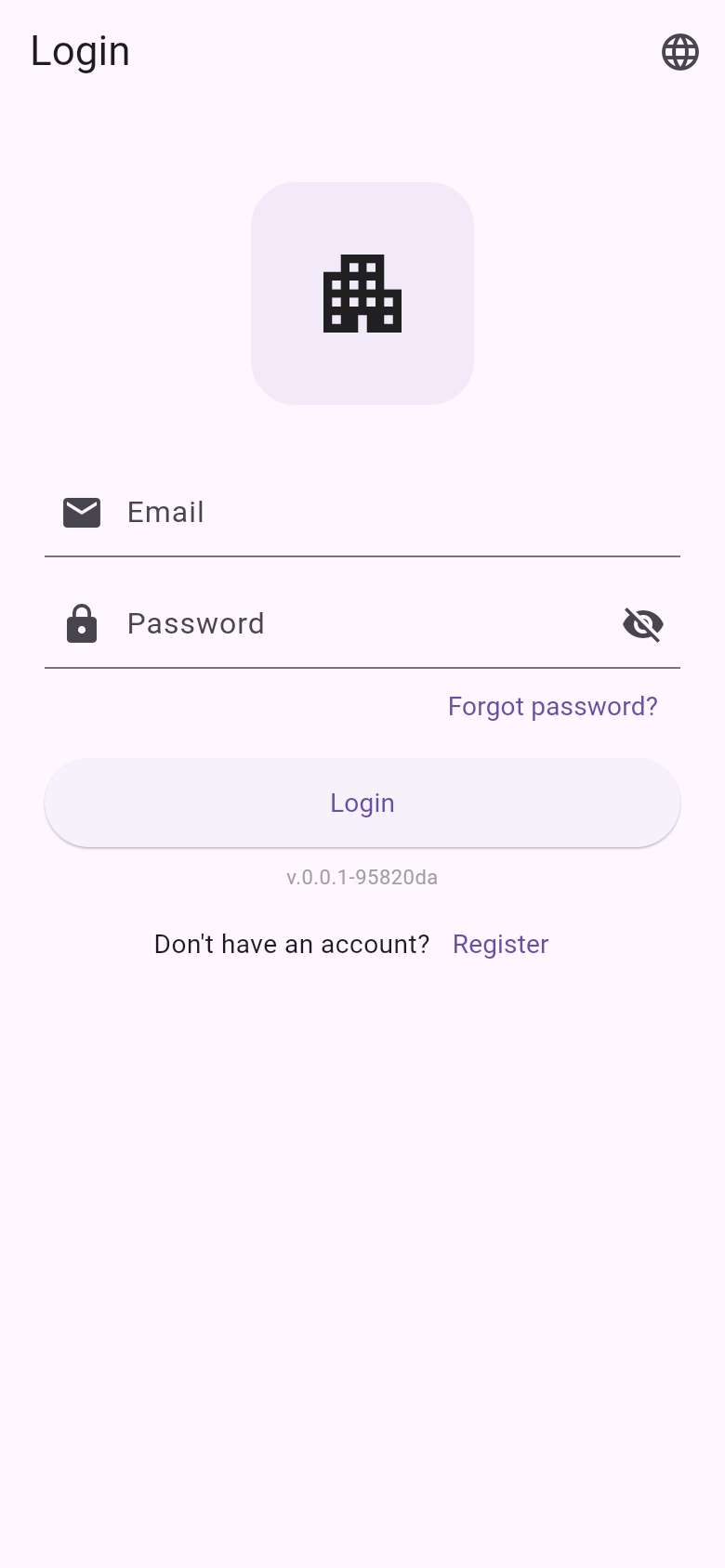
- Open the Absensi-Q website and press Log in, at the top of the page.
- A window titled Log in to Absensi-Q opens. Choose Employee app. It is marked for employees.
- Type your Email and your Password, then press Login.
- If your email belongs to more than one company, the page Select Account appears. Choose your company, then press Continue to Dashboard.Each company shows your role, such as Member. The role does not change what you can do in the app.
- The Home screen opens. You are signed in.
Choose your language
The app is available in English and in Bahasa Indonesia. At first, it follows the language of your phone.
- Before you sign in, press the globe button at the top of the sign-in screen. After you sign in, open the tab Profile and press Language.
- Choose English or Bahasa Indonesia. The change happens at once.
If you forgot your password
- On the sign-in screen, press Forgot password?.
- Type your Email and press Send reset link.
- The page Check your email appears. Open the email and press the link.The link works for 30 minutes. If you cannot find it, check your spam folder. After one minute you can press Send again.
- Type the new password in New password and in Confirm new password. It must have 8 to 128 characters, and both entries must match.
- Press Update password.
- Press Back to sign in. A green message says: Password updated. Sign in with your new password.
If something goes wrong
| What you see | What to do |
|---|---|
| The invitation link does not work. | The link may be older than 7 days or may have been used already. Ask your admin to send the invitation again. |
| A red message says that your email or password is not valid. | Check your email and password. If you are not sure, press Forgot password?. |
| Subscription expired. Your organization's subscription has expired. Please ask your administrator to renew it. | Your company's plan has ended. Tell your admin. You can sign in again after the admin has paid. |
| When you ask for a reset link: Too many attempts. Wait a few minutes and try again. | Wait a few minutes, then try again. |
| This link can't be used. | The reset link is old or was used already. Press Request a new link. |
Swipe sideways to see the whole table.
For a problem with your account, your schedule or your location, ask your admin first. If the app itself does not open for anyone in your company, the admin can contact Absensi-Q.