The tabs at the bottom
The bar at the bottom of the app has five tabs.
| Tab | What it is for |
|---|---|
| Home | Today's shift, the Clock In and Clock Out button, and a summary of this month. |
| Records | A day-by-day list of your attendance for one month. |
| LOG | A button for reports from the field, such as checkpoints. This guide does not cover it. |
| Calendar | A month grid with a mark for every day. |
| Profile | Your details, your numbers for this month, your language, and Logout. |
Swipe sideways to see the whole table.
The summary on the Home screen
The card Attendance on the Home screen shows this month in three tabs. Press a tab to see the days.
| Tab | What it counts |
|---|---|
| On time | Days when you clocked in before the start and clocked out after the end. |
| Absent | Working days before today when you did not clock in and had no approved leave. A half day absent counts as 0.5. |
| Late/Early | Days when you were late, left early, or forgot to clock out. |
Swipe sideways to see the whole table.
Each row shows the date, the state, and your clock-in and clock-out times. The list shows the first 5 days. Press Show all to see every day, and Show less to fold the list again.
Records: your attendance by day
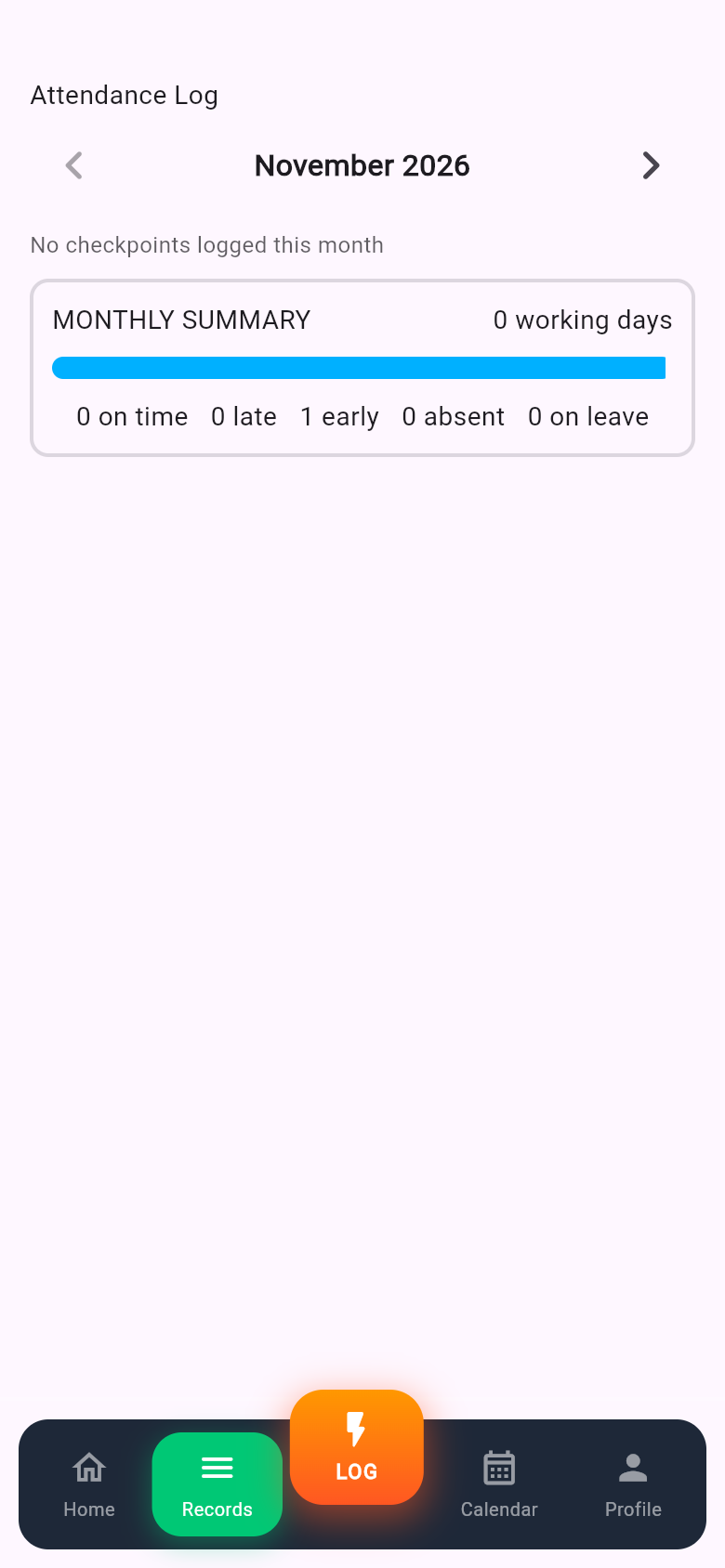
- Press the tab Records. The Attendance Log of this month opens.
- To see another month, use the arrows for the previous or the next month.
- Read the MONTHLY SUMMARY at the top. It counts how many days you were on time, late, early out and absent.
- Read the list. Each day shows your clock-in time, your clock-out time, how long you worked, and a state.A day marked OFF DAY is a day off. A day marked TODAY is today. A day without a record, in the past, shows as Absent.
Days with approved leave show a leave mark instead of Absent.
Calendar: the whole month at a glance
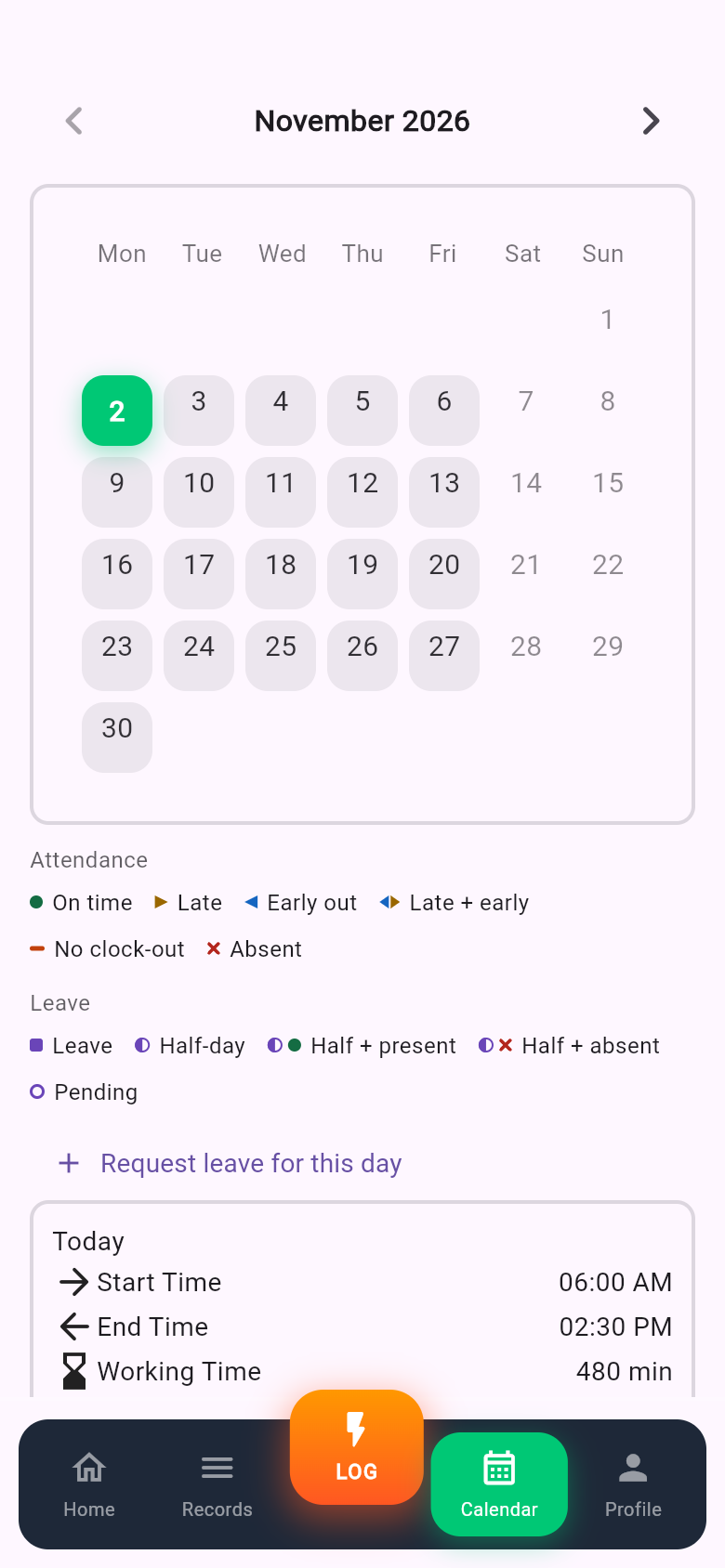
- Press the tab Calendar.
- Use the arrows to move to another month.
- Look at the mark on each day. The legend below the calendar explains every mark, for example On time, Late, Early out, No clock-out, Absent, Leave and Pending.
- Press a day. A card shows the details: the shift, your clock-in and clock-out times, and the state.
| Mark | What it means |
|---|---|
| On time | You clocked in and out on time. |
| Late | You clocked in after the shift started. |
| Early out | You clocked out before the shift ended. |
| Late + early | Both: you were late and left early. |
| No clock-out | You clocked in and did not clock out. |
| Absent | You did not clock in on a working day. |
| Leave | Approved leave. Half-day marks show half a day of leave. |
| Pending | A leave request is waiting for approval. |
Swipe sideways to see the whole table.
Profile: your details and numbers
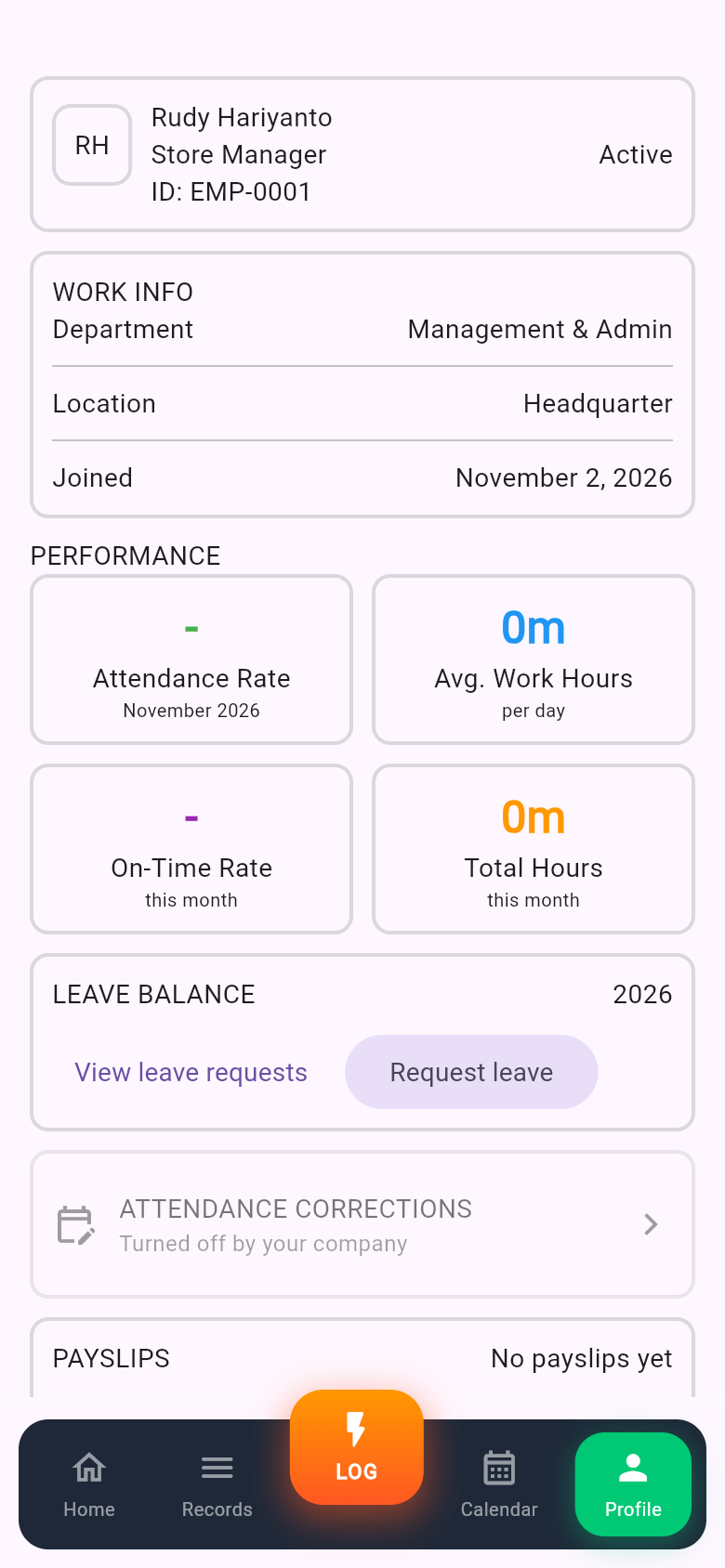
Press the tab Profile. At the top you see your name, your email and the label Active. Below it:
- WORK INFO: your Department, your Location and the date you Joined.
- PERFORMANCE for this month: Attendance Rate (the share of working days on which you were present), On-Time Rate, Total Hours worked and Avg. Work Hours per day. A dash means that there are no working days to count yet.
- Language: press it to change the language of the app.
- Logout: press it to sign out of the app.
The Profile also has sections for other features, such as leave and payslips. This guide does not cover them.
If something goes wrong
| What you see | What to do |
|---|---|
| Couldn't load this month's attendance. | Check your internet connection, then press Retry. |
| No records for this month yet. | There is nothing to show for that month. Choose another month. |
| A day shows Absent but you worked. | Tell your admin. The admin can check the day and, if needed, fix it. |
| The times look different from your shift. | Check that your phone's date, time and time zone are set to automatic. If they are, tell your admin. |
Swipe sideways to see the whole table.