The app says location permission is denied
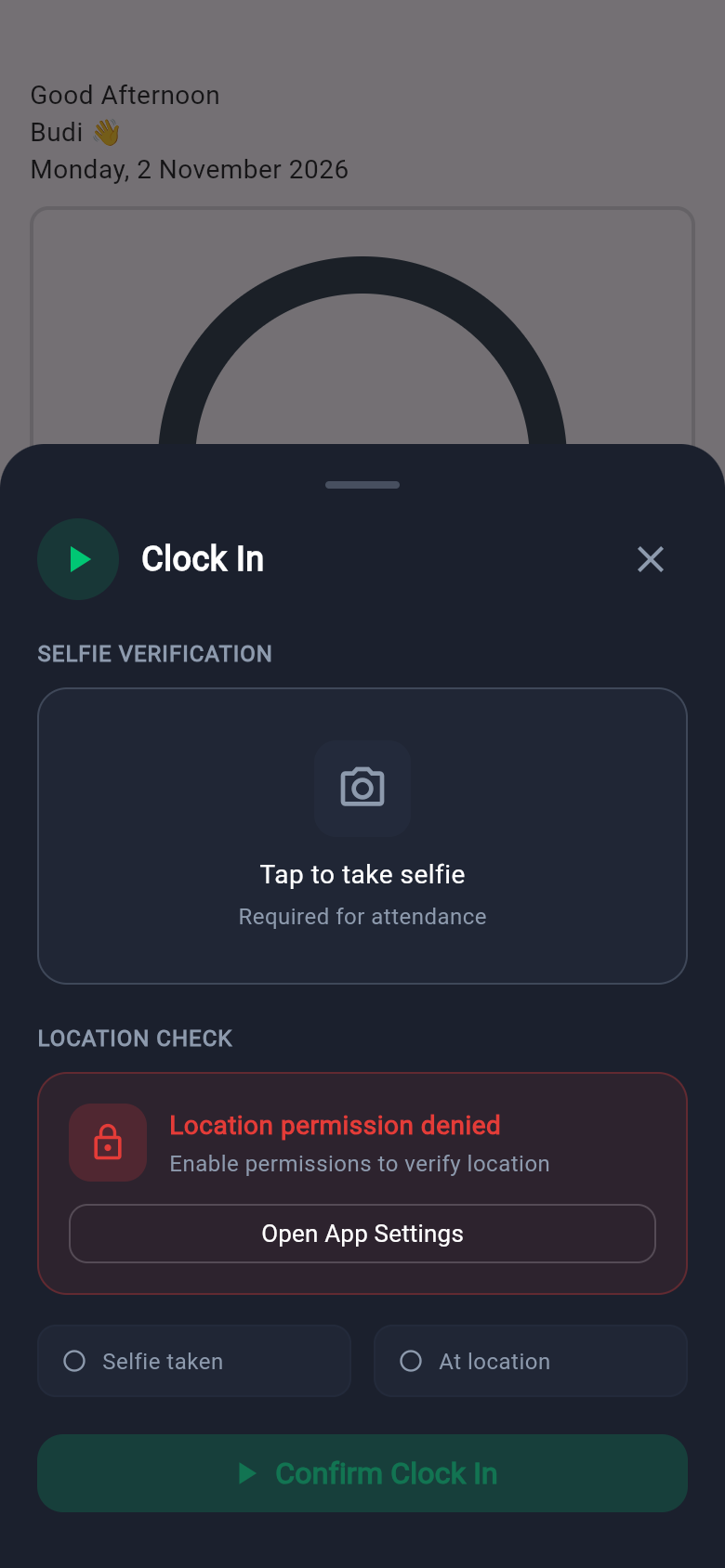
You see a red box with the text Location permission denied and Enable permissions to verify location. The app cannot find your position because you did not allow it, or because location is switched off on your phone.
- Make sure location (GPS) is switched on in the settings of your phone.
- Press Open App Settings in the red box.
- Find Location and choose to allow it for the app or for your browser.If the button does not open the settings, open the settings of your phone or the site settings of your browser yourself. In many browsers, you press the small icon next to the web address.
- Go back to the app and press Clock In or Clock Out again.
The location takes long or looks wrong
GPS needs a clear view of the sky. Inside buildings or basements, it can be slow or off by several meters.
- Wait a little while the text Checking your GPS location... shows. If it says Waiting for a GPS fix, your position is not ready yet.
- Move next to a window or step outside.
- Press Retry location.
- Switch your internet or Wi-Fi on. It helps the phone find its position faster.
- Press View on Map to see where the app thinks you are.
The camera does not open
You press Tap to take selfie and nothing happens, or no photo is saved. The phone or browser may be blocking the camera.
- Open the settings of your phone or the site settings of your browser and allow the camera for the app.
- Close other apps that use the camera, such as video calls.
- Reload the app page and try again.
The app says you are outside the clock-in area
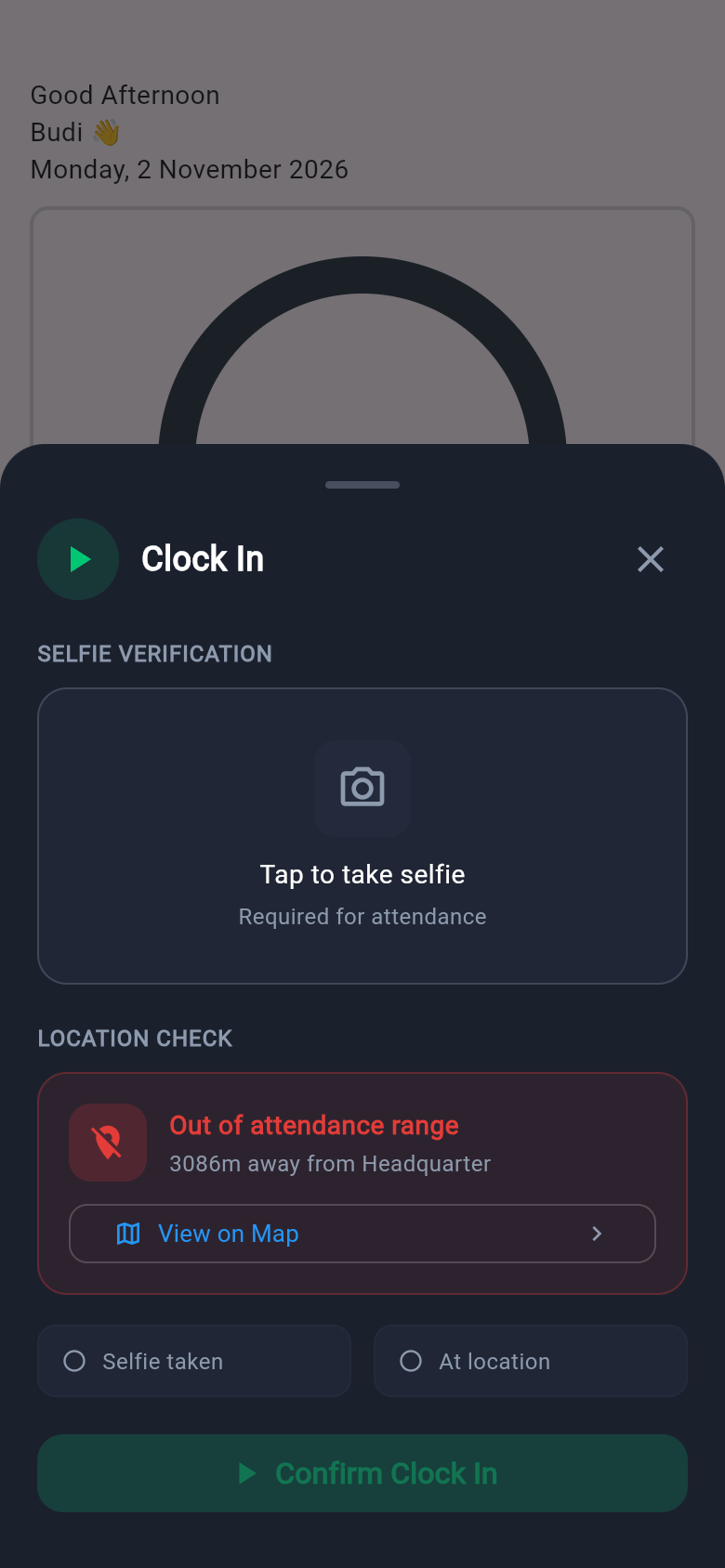
You see a red message: Out of attendance range, with a distance such as 80m away from the name of the area. The confirm button cannot be used.
- Walk closer to the workplace, and follow the hint Navigate closer to an attendance spot.
- Press View on Map to see the allowed area and your position. Press Retry location to check again.
- If you are really inside the workplace and still see this message, tell your admin. The admin can make the area larger or move it.
If you see No attendance location assigned, no area is set for you yet. Tell your admin.
The time or the state looks wrong
- Check that the date, the time and the time zone of your phone are set to automatic.
- Your clock-in and clock-out times follow the time zone of your phone. The times of your shift follow the time zone of your work location. If the two zones are different, the times can look different.
- Late and early times are worked out in the time zone of your work location. If you are marked late but you clocked in on time, tell your admin. Your admin can check the time zone of the location.
You cannot sign in
| What you see | What to do |
|---|---|
| A red message that your email or password is not valid | Check your email and password. Press Forgot password? if you are not sure. See the guide on getting started. |
| You never accepted the invitation | Open the invitation email and accept it first. If the link does not work, ask your admin to send it again. |
| Subscription expired. Your organization's subscription has expired. Please ask your administrator to renew it. | Your company's plan has ended. Tell your admin. You can sign in again after the admin has paid. |
| You belong to more than one company | On the page Select Account, choose the right company. |
Swipe sideways to see the whole table.
The app takes you back to the sign-in screen
The app keeps you signed in for a while. After a longer time, after you change your password, or when the company subscription has expired, the app returns to the sign-in screen. Sign in again. You do not lose your attendance records.
Clock in or clock out failed
| What you see | What to do |
|---|---|
| Failed to upload the photo | Check your internet connection and press the confirm button again. |
| Failed to clock in | Check your internet connection and try again. |
| Failed to clock out | Check your internet connection and try again. Do not close the app while it works. |
Swipe sideways to see the whole table.
Who to contact
| Contact | For these problems |
|---|---|
| Your admin (at your company) | Your account or invitation, your schedule or shift, your work location or the clock-in area, a wrong state or time, a forgotten clock-out, and an expired subscription. |
| Absensi-Q | The app does not open for anyone in your company, or a problem continues after your admin has checked it. Your admin contacts us with the contact details at the end of this website. |
Swipe sideways to see the whole table.