Before you start
To clock in or clock out, the app needs two things from your phone: your location and a selfie. A selfie is a photo that you take of your own face with the front camera. The location comes from GPS, the feature that finds where your phone is.
- You are signed in to the employee app.
- Location (GPS) is switched on, and you allow the app to use it when your phone or browser asks.
- You allow the app to use the camera when your phone or browser asks.
- You have an internet connection.
See your shift on the Home screen
The Home screen shows a greeting, the hours you have worked today, and a card with today's shift. A shift is your working time for the day.
| Card | What it shows |
|---|---|
| Normal shift | The Start Time and End Time, the Working Time and the Break Time. |
| Flexible | A shift with no fixed start and end. You only need to work the Target Working Time. |
| Off Day | A day off. You do not need to clock in, and no button is shown. |
Swipe sideways to see the whole table.
The button at the bottom shows Clock In when you have not clocked in yet, and Clock Out after you clocked in. After you clock out, no button is shown for that day.
Clock in
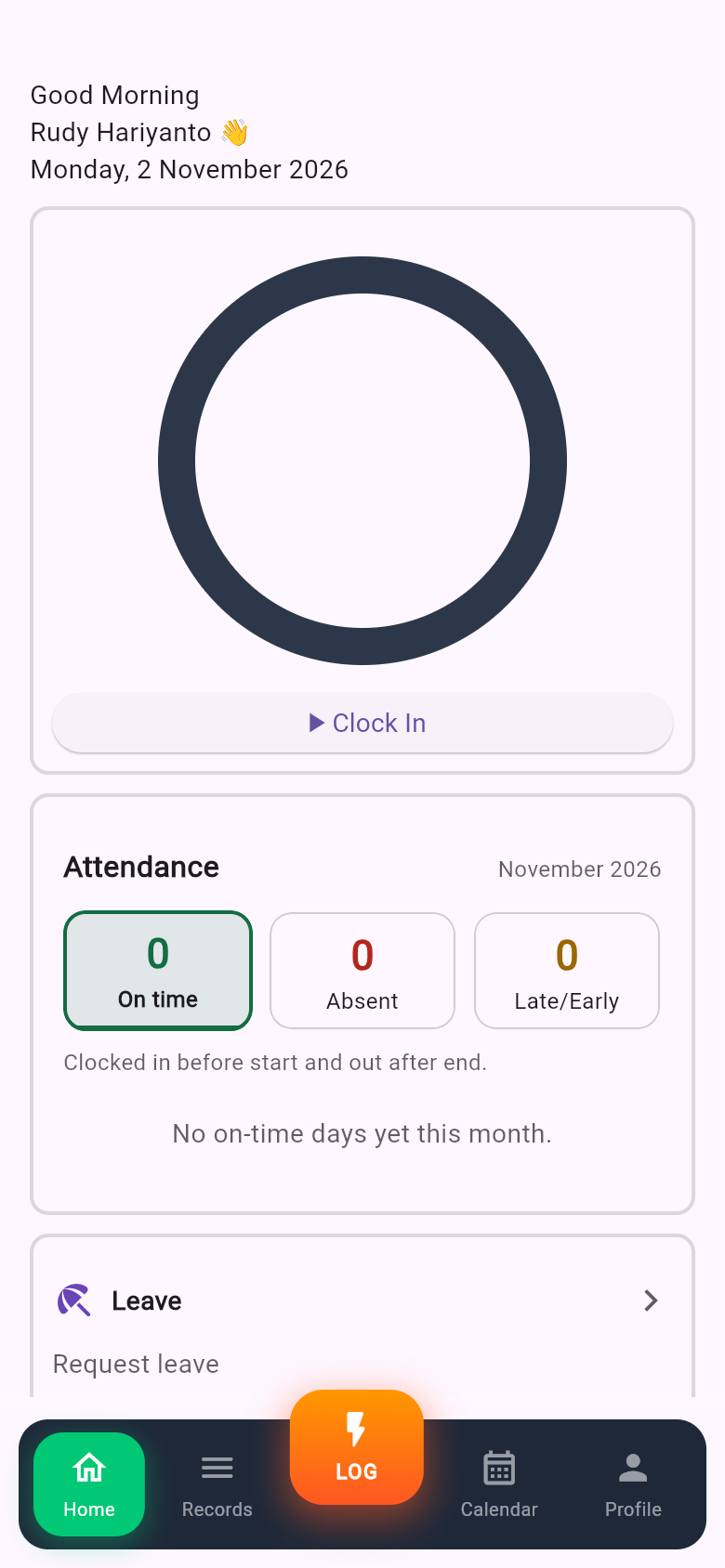
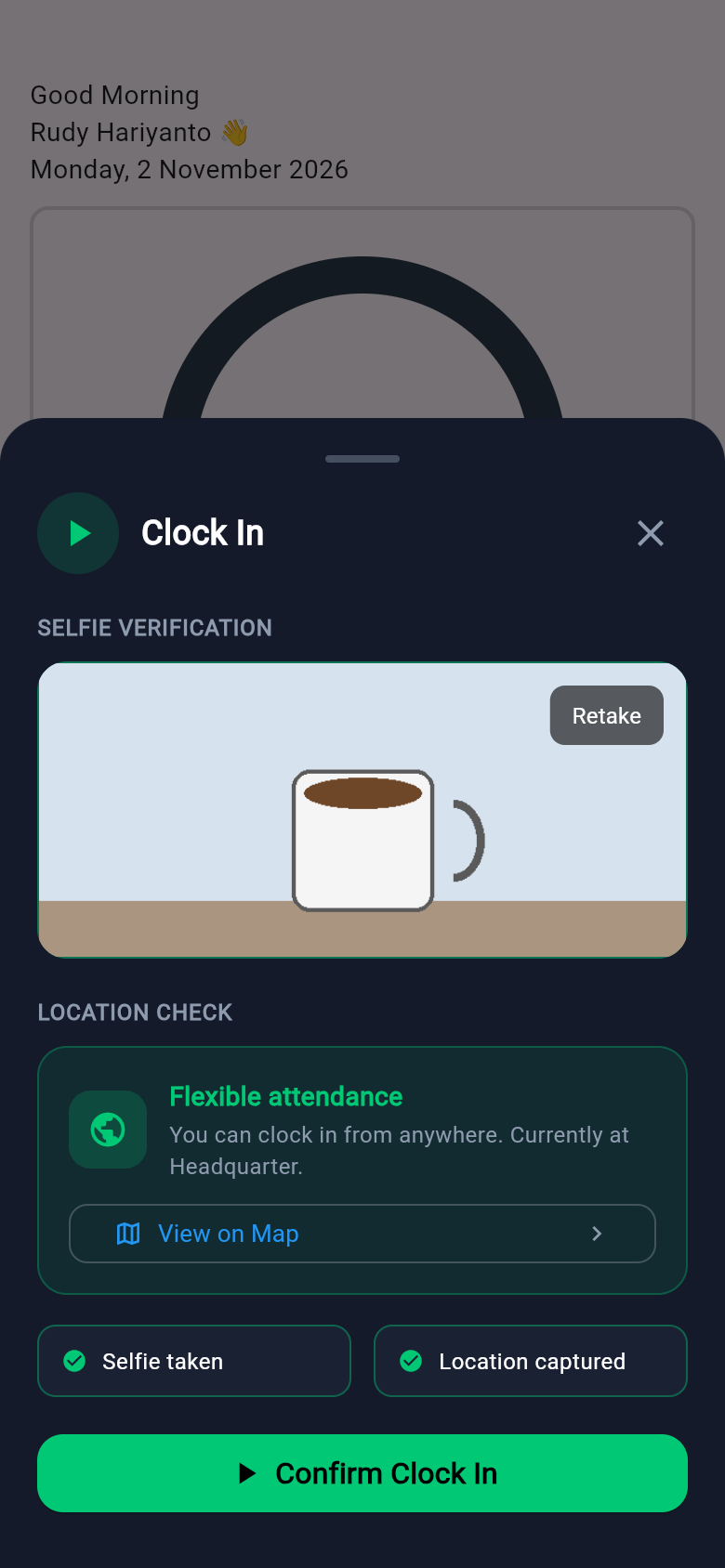
- On the Home screen, press Clock In. A panel opens from the bottom.
- If your phone or browser asks to use your location and camera, allow both.
- Under SELFIE VERIFICATION, press Tap to take selfie and take a photo of your face. The text Selfie taken confirms it. Press Retake if you want another photo.
- Under LOCATION CHECK, wait while the app finds your position. The text Checking your GPS location... shows while it works.
- Wait for a green message: You are within range. The label At location also appears. If your employer allows clocking in from anywhere, the message reads Flexible attendance instead.
- Press Confirm Clock In.
- The message Success appears and the panel closes. The Home screen now shows your clock-in time, and the button changes to Clock Out.
Clock out
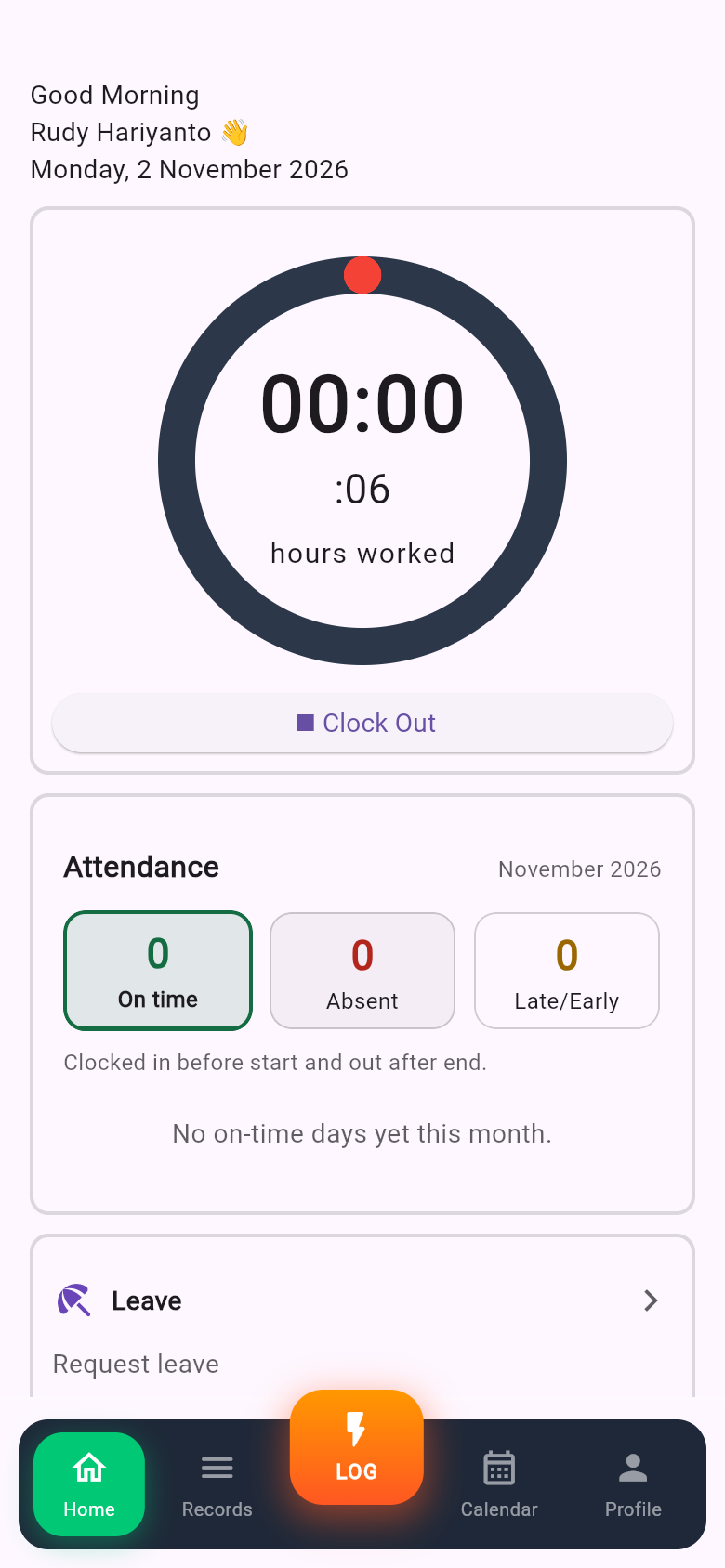
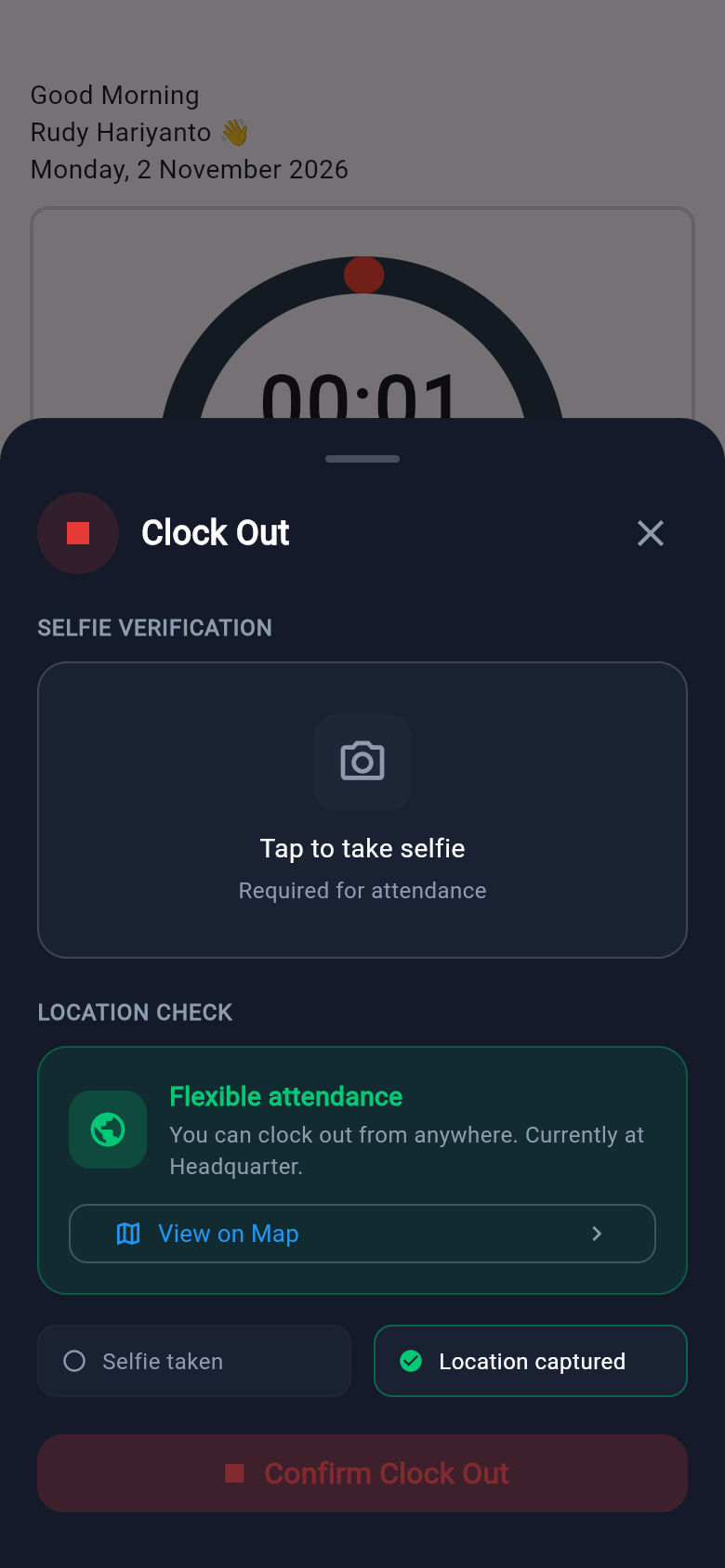
- At the end of your shift, open the Home screen and press Clock Out.
- Take a selfie and wait for the location check, as you did when you clocked in.
- Press Confirm Clock Out.
- The message Success appears. Your clock-out time is saved.
If you are outside the clock-in area
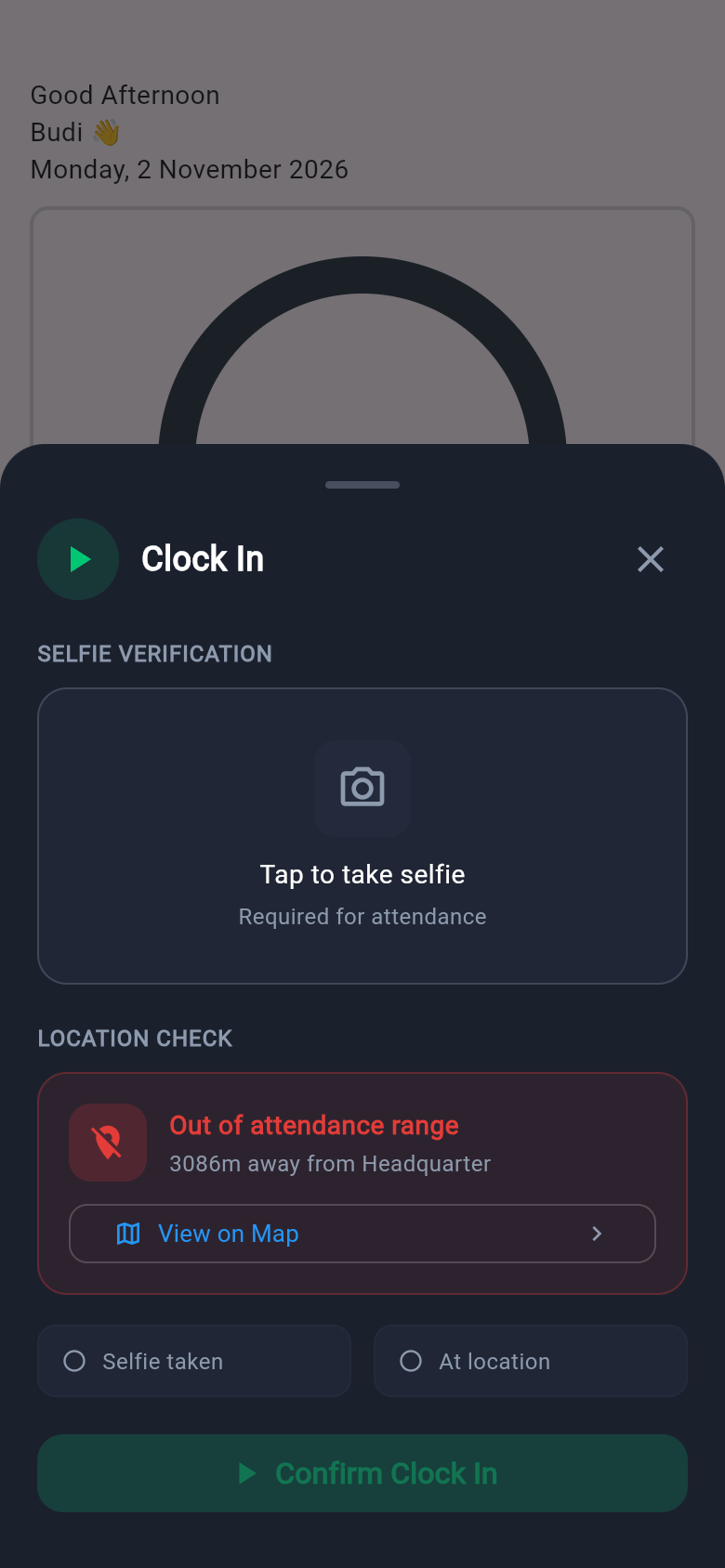
Your employer draws a clock-in area on the map around the workplace. This area is called a geofence. If your employer chose Fixed for you, you can clock in and out only inside it.
| What you see | What it means | What to do |
|---|---|---|
| You are within range (green) | Your phone is inside the area. | Press the confirm button. |
| Out of attendance range (red), with a distance, such as 80m away from the name of the area | Your phone is outside the area. The confirm button cannot be used. | Walk closer to the workplace. Press View on Map to see the area and your position. Press Retry location if the position looks wrong. |
| No attendance location assigned | No clock-in area is set for you. | Tell your admin. You cannot clock in until an area is set. |
| Flexible attendance | You may clock in and out from anywhere. Your position is still recorded. | Take your selfie and press the confirm button. |
Swipe sideways to see the whole table.
Late, early and on time
The app compares your clock-in and clock-out times with your shift. You see the result on the Home screen and in your records.
| State | What it means |
|---|---|
| On time | You clocked in before the start and clocked out after the end. |
| Late | You clocked in after the shift started. |
| Early out | You clocked out before the shift ended. |
| Late & early out | You clocked in late and clocked out early on the same day. |
| No clock-out | You clocked in but did not clock out. |
| Absent | You did not clock in on a working day. |
Swipe sideways to see the whole table.
Late and early times are worked out in the time zone of your work location. If you think a state is wrong, tell your admin.
If something goes wrong
| What you see | What to do |
|---|---|
| Location permission denied. Enable permissions to verify location. | Press Open App Settings and allow location. Then come back and try again. |
| The confirm button is grey and cannot be pressed. | You need both a selfie and a location. If you are in Fixed mode, you also need to be inside the area. |
| Failed to upload the photo | Check your internet connection, then press the confirm button again. |
| Failed to clock in or Failed to clock out | Check your internet connection and try again. If it keeps happening, tell your admin. |
| A message says you already clocked in, or that there is no clock-in to clock out from | Open the Home screen and check your times. If they look wrong, tell your admin. |
Swipe sideways to see the whole table.
For more help, see the guide on common problems.