What the portal is
The portal is the website where company owners and admins set up and manage Absensi-Q. Employees do not use the portal. They use the employee app to clock in and clock out.
Each person has a role. A role is a set of tasks that the person is allowed to do. The portal has two roles.
| Role | Who it is for | What it can do in the portal |
|---|---|---|
| Owner | The person who registered the company | Everything an admin can do. The owner is created automatically when the company is registered. |
| Admin | A person who helps run the company account | Set up locations, organization, shifts and employees, review attendance, and manage the subscription. |
Swipe sideways to see the whole table.
Register your company
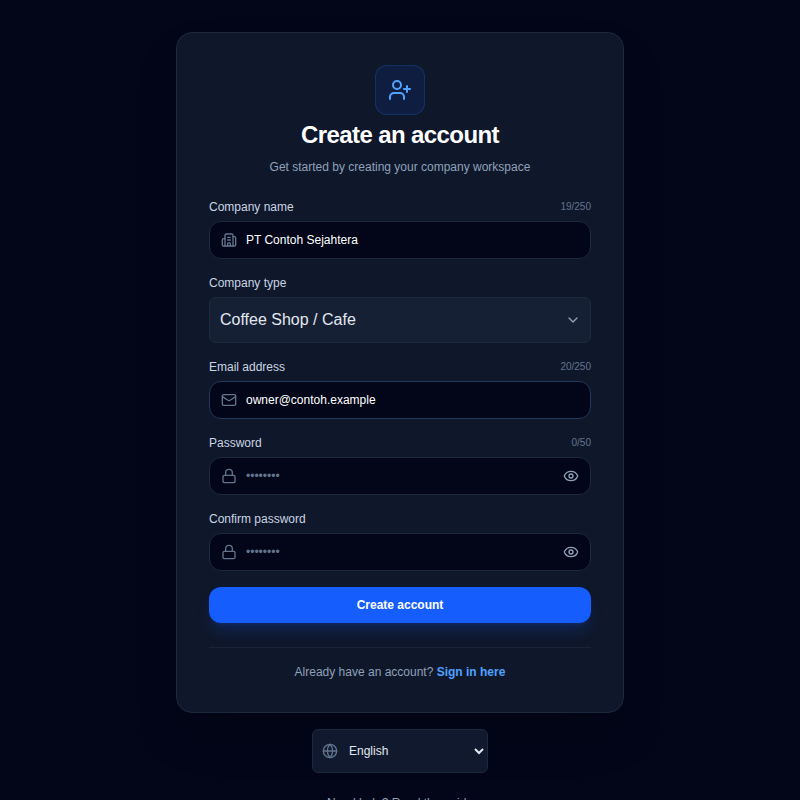
- Open the Absensi-Q website and press the register button. You can also press Register here on the portal sign-in page.
- Type your business name in Company name.
- Choose the Company type that is closest to your business.Absensi-Q uses it to prepare a starting setup for you, such as departments, positions and shifts. You can change all of it later.
- Type your Email address. Use an address that you can open. You will use it to sign in and to receive password reset links.
- Type a Password, then type it again in Confirm password.A strength bar shows Weak, Fair, Good or Strong. Choose a password that is Good or Strong, and do not use it anywhere else.
- Press Create account. The sign-in page opens. Your account now has the Owner role.
What is ready after you register
After you register, Absensi-Q fills in a starting setup in the background, based on the company type you chose. It includes shift templates (working hours), roster patterns (repeating work schedules), job positions and departments.
This can take a short moment. Review it first, then change it to fit your company. We suggest this order:
- Add your work locations and draw the area where employees may clock in.
- Check the departments and job positions, and change them if needed.
- Check the shifts and roster patterns.
- Add your employees and invite them to the employee app.
- Check your subscription.
Sign in to the portal
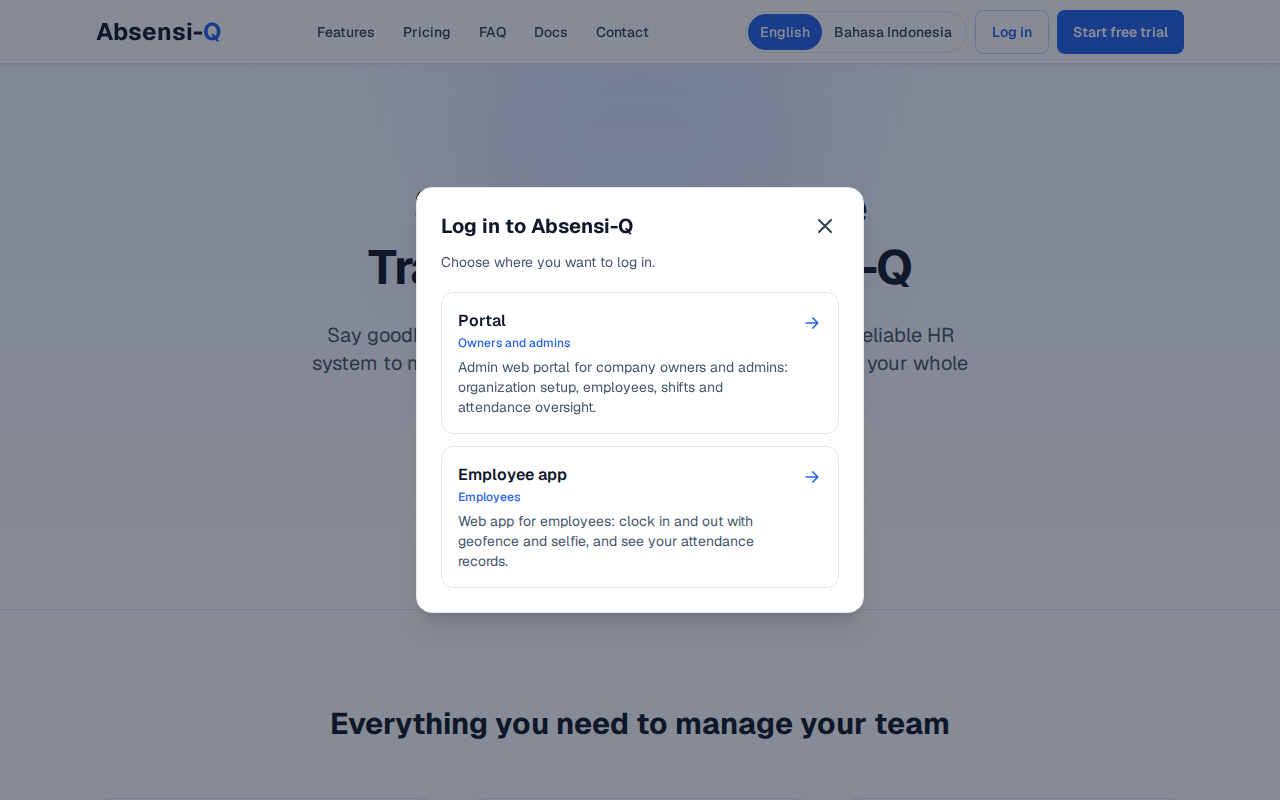
- Open the Absensi-Q website and press Log in, at the top of the page.
- A window titled Log in to Absensi-Q opens. Choose Portal. It is marked for owners and admins.
- Type your Email address and Password, then press Sign in.
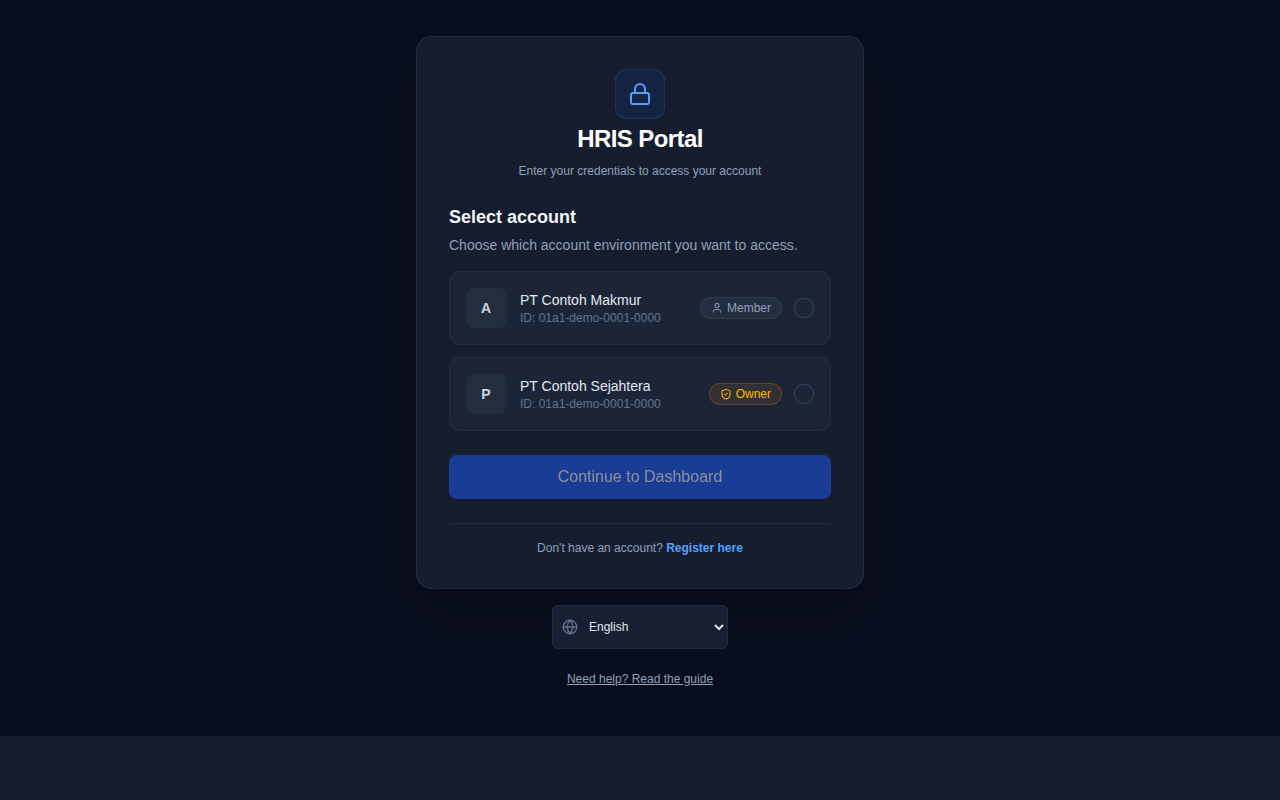
- If your email belongs to more than one company, the page Select account appears. It shows each company name and your role. Choose one, then press Continue to Dashboard.
- The dashboard opens. When you finish, press Log out in the side menu.
If you forgot your password
- On the sign-in page, press Forgot password?.
- Type your Email address and press Send reset link.
- The page Check your email appears. Open your email and press the link inside.The link works for 30 minutes. If you cannot find the email, look in your spam folder. You can ask for another link after one minute by pressing Send again.
- On the page Set a new password, type the new password in New password and again in Confirm new password.The password must have 8 to 128 characters and must not be the same as your email address. The two entries must match.
- Press Update password. The message Password updated appears.
- Press Back to sign in and sign in with your new password.
If something goes wrong
| What you see | What to do |
|---|---|
| Invalid email or password. | Check the spelling of your email and password. If you are not sure, press Forgot password?. |
| Too many attempts. Wait a few minutes and try again. | Wait a few minutes, then try again. |
| This link can't be used. The link is invalid, has expired, or was already used. | Press Request a new link and use the new email. Reset links work for 30 minutes and only once. |
| You do not receive the reset email. | Check the spam folder, wait one minute, then press Send again. If it still does not arrive, contact us using the contact details at the end of this website. |
| The lists of departments, positions or shifts are empty a few minutes after you registered. | Refresh the page. If they are still empty, contact us using the contact details at the end of this website. |
Swipe sideways to see the whole table.