Before you start
A location is a place where your employees work, such as an office, a shop or a branch. Every employee is assigned to one location.
A geofence is an invisible boundary drawn on a map. When an employee uses the employee app, the app uses the phone's GPS (the feature that finds where the phone is) to check whether the phone is inside the geofence. An employee whose attendance location is set to Fixed can clock in and clock out only inside it.
- You need to be signed in to the portal as an owner or an admin.
- You need the address of the location. It helps to know where the entrance is.
- Your plan limits how many active locations you can have. If you reach the limit, the portal shows a message and asks you to upgrade your plan.
Add a location
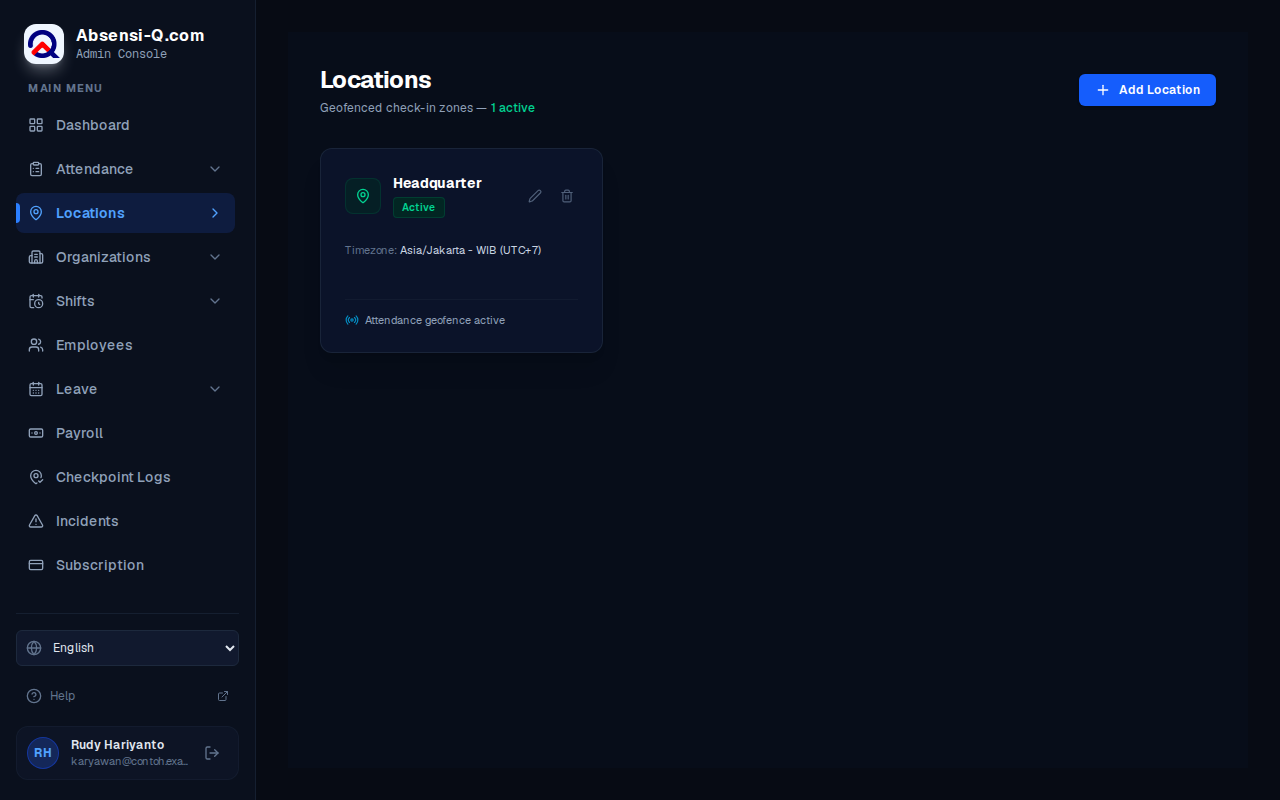
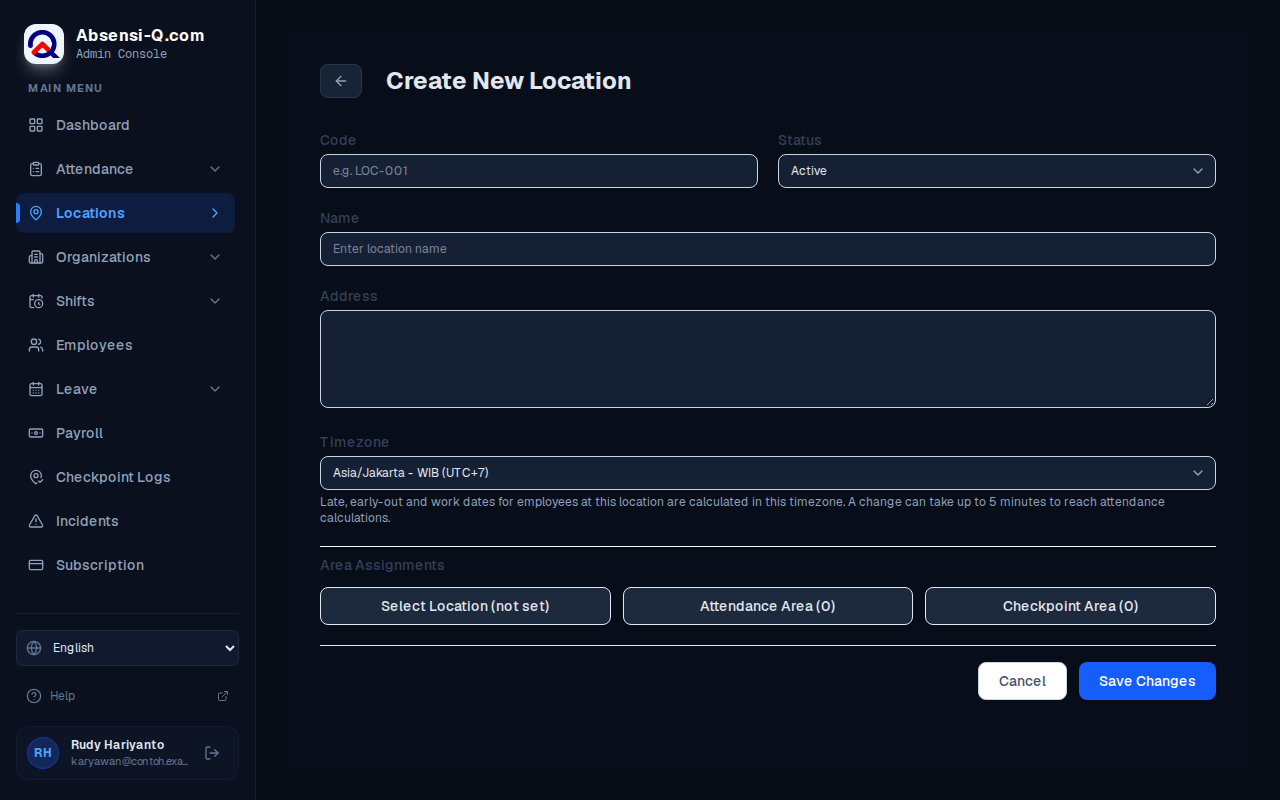
- In the menu, open Locations, then press Add Location.
- Type a Code. This is a short name that is easy to recognise, for example JKT-01.
- Type the Name and the Address of the location.
- Make sure Status is Active.
- Choose the Timezone of the location.For most of Indonesia, choose Asia/Jakarta (WIB), Asia/Makassar (WITA) or Asia/Jayapura (WIT). The portal uses this time zone to work out late arrivals, early departures and the date of each work day. A change can take up to 5 minutes to take effect.
- Press Select Location (not set). A map opens. Search for the place, press on the map, or press Find My Location. Then press Use Location.This sets the main point of the location on the map.
- Draw the clock-in area. Follow the next section, then come back here.
- Press Save Changes at the bottom of the form. The new location appears in the list of locations.
Draw the clock-in area
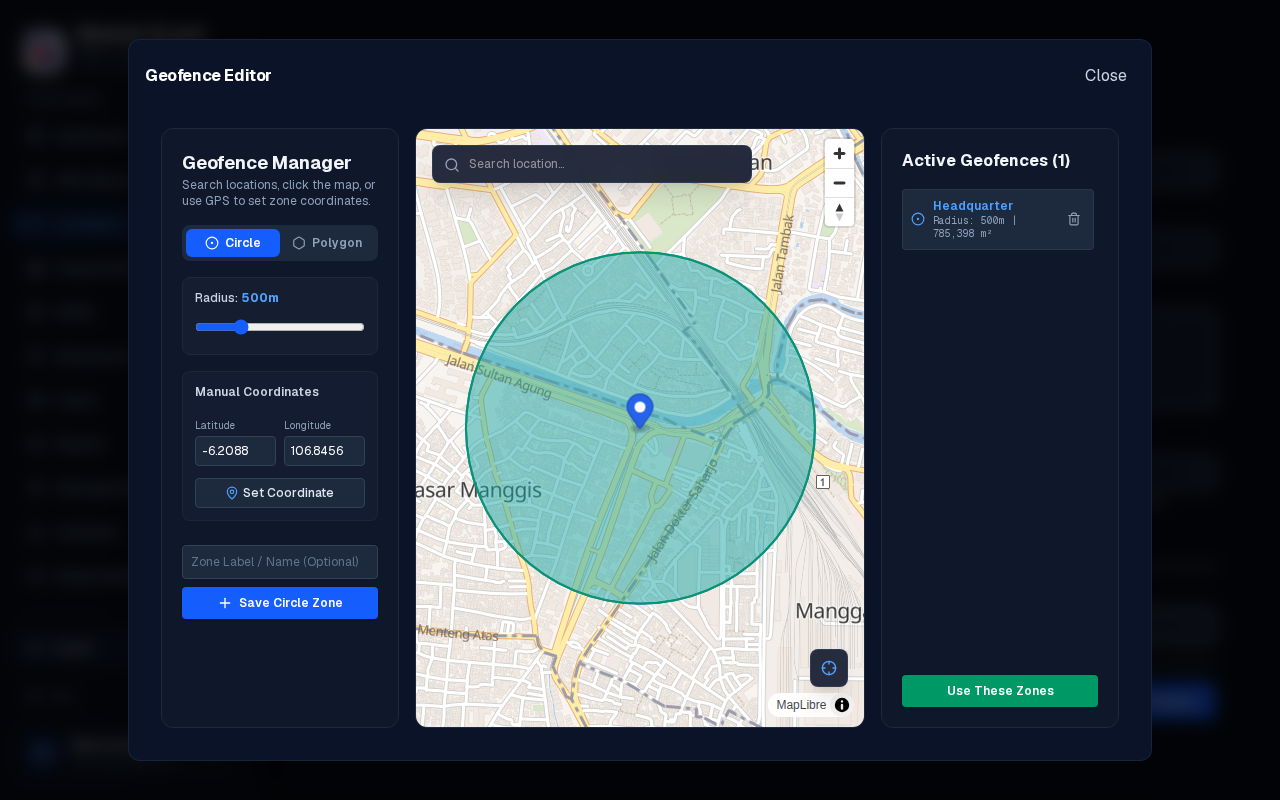
- On the location form, press Attendance Area. The number in brackets shows how many areas are saved. The Geofence Manager opens.
- Choose the shape. Choose Circle for a round area. Choose Polygon for an area with several corners, such as a building.
- For a circle, search for the place or press on the map to set the centre. Then set the radius in meters. The default is 500 m.The radius is the distance from the centre to the edge of the circle.
- For a polygon, press on the map once for each corner, going around the area in order. You need at least 3 corners. Press Clear All to start again.
- You may type a name in Zone Label / Name (Optional), for example Main gate.
- Press Save Circle Zone or Save Polygon Zone. The area appears in the list Active Geofences.
- To add another area, repeat the steps above. To remove an area, press the delete button next to its name in the list.
- When the list is complete, press Use These Zones.
What employees see
When an employee presses Clock In or Clock Out in the employee app, the app checks the phone's position.
| Situation | What the employee sees |
|---|---|
| Inside the area | A green message: You are within range. The confirm button can be used. |
| Outside the area | A red message: Out of attendance range, with the distance to the nearest area. The confirm button cannot be used. |
| No area saved for the location | A message: No attendance location assigned. The employee cannot clock in until you save an area. |
| Employee set to Flexible | A green message: Flexible attendance. The employee can clock in and clock out from anywhere. The position is still recorded. |
Swipe sideways to see the whole table.
You choose Fixed or Flexible for each department, job position or employee. See the guides on the organization and on employees.
Change or remove a location
- In the menu, open Locations.
- Find the location card. Press the edit button to change it, or the view button to see it on a map.
- To change the area, open the form and press Attendance Area again. Then save with Save Changes.
If something goes wrong
| What you see | What to do |
|---|---|
| Map could not be loaded. Check your connection and try again. | Check your internet connection, then press Retry. |
| A polygon requires at least 3 points! | Press on the map to add more corners before you save. |
| Geolocation is not supported by your browser. | Search for the place by name or press on the map instead of using Find My Location. |
| Unable to retrieve location | Allow your browser to use your location, or search for the place by name. |
| You've reached your plan's location limit. Upgrade your plan to add more. | Set an unused location to Inactive, or change your plan. See the guide on the subscription. |
| Employees say they are outside the area although they are at work. | Open the location and make the area larger or move it, then save. Ask the employee to try again after a few minutes. |
Swipe sideways to see the whole table.