How it works
Absensi-Q uses two building blocks to know when each employee should work.
| Term | What it means | Example |
|---|---|---|
| Shift template | A shift is one set of working hours. A shift template stores it. | Office hours: 08:00 to 17:00 with a 60-minute break |
| Roster pattern | A roster is a work schedule. A roster pattern is a schedule that repeats after a number of days. Each day of the pattern uses one shift template. | 7 days: five days of Office hours, then two rest days |
Swipe sideways to see the whole table.
You then choose which roster pattern each department or job position follows. Employees follow the pattern of their job position. If the position has none, they follow the pattern of their department.
Create a shift template
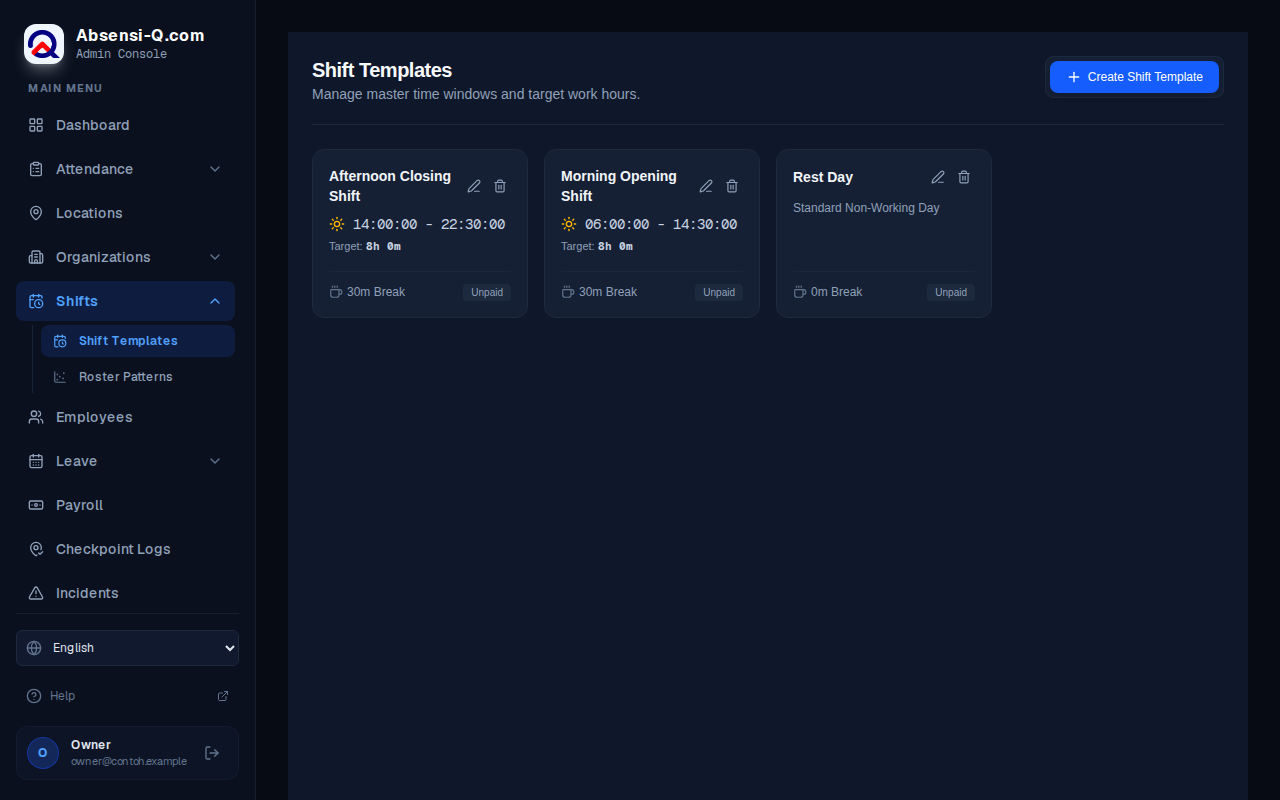
- In the menu, open Shifts, then Shift Templates.
- Press Create Shift Template.
- Type a Shift Code, for example OFC, and a Shift Name, for example Office hours.
- Choose the type of shift.Normal shift: set the start and end time. Rest day: turn on Rest Day (OFF). Flexible hours: turn on Flexible Time. Employees on a flexible shift may work at any time, as long as they reach the target hours.
- For a normal shift, type the Start Time and the End Time. If the end time is earlier than the start time, the shift is overnight and ends the next day.
- Check the Target Work Minutes. For a normal shift it is worked out for you. For a flexible shift, type the number of minutes an employee should work.
- Type the Break Duration (Mins). Turn on Paid Break Period if the break counts as paid working time.
- Press Save Shift Template.
To change a shift template, press its edit button, change it, then save.
Create a roster pattern
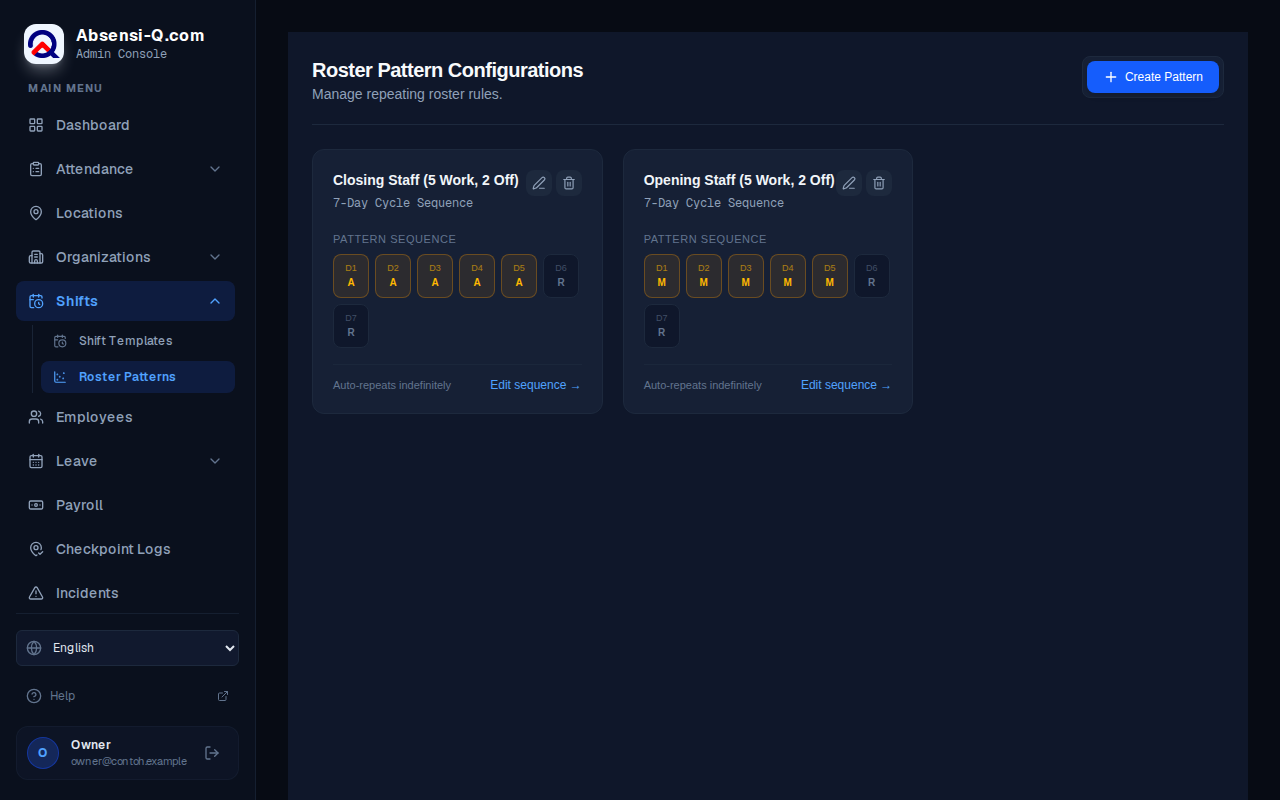
- In the menu, open Shifts, then Roster Patterns.
- Press Create Pattern.
- Type a Pattern Code and a Pattern Name.
- Type the Cycle Length (Days). This is how many days before the pattern repeats. Use a number from 1 to 30. A normal week is 7.
- Under Map Day Index to Master Shift, choose a shift template for each day. Day 1 comes first. Choose a rest day shift for the days off.
- Press Save Pattern.
Make employees follow a roster
- In the menu, open Organizations, then Departments or Job Positions.
- Press the edit button of the department or position.
- Choose the roster pattern in Default Roster Pattern.
- Press Save Changes.
A pattern on a job position replaces the pattern of its department. The portal does not assign a different roster to one single employee.
To check the result, open the attendance calendar of an employee. Future working days show as Scheduled, and rest days show as Off day. The employee also sees the shift in the employee app.
If something goes wrong
| What you see | What to do |
|---|---|
| A shift template cannot be deleted. | A roster pattern still uses it. Change the pattern so it uses another shift, then delete the shift. |
| An employee has no shift today. | Check that the employee's job position or department has a Default Roster Pattern, and that the pattern has a shift for that day. |
| Rest days fall on the wrong days of the week. | Remember that Day 1 starts on the Monday of the week the employee joined. Move the days in the pattern. |
Swipe sideways to see the whole table.