Read the dashboard
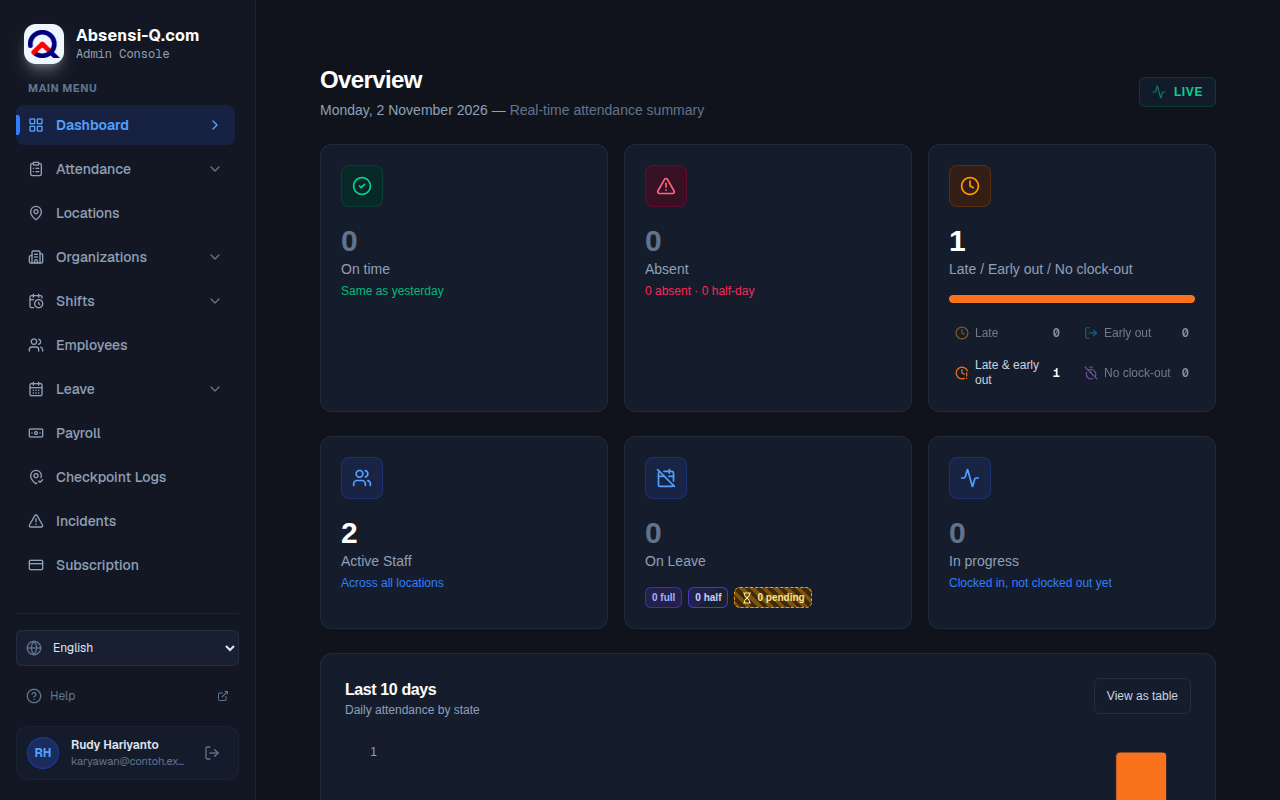
The dashboard is the first page after you sign in. It is called Overview and shows a live summary of today.
| Card or part | What it shows |
|---|---|
| On time | How many employees clocked in and out on time today. |
| Absent | Employees who did not come to a working day, and half-day absences. |
| Late / Early out / No clock-out | Employees who need attention: late arrivals, early departures, and people who forgot to clock out. |
| Active Staff | The number of active employees in all locations. |
| On Leave | Employees on approved leave. Requests that are still waiting for approval are shown separately as pending. |
| In progress | Employees who clocked in and have not clocked out yet. |
| Last 10 days | A chart of attendance for each of the last 10 days. |
| Today status | A summary of today by state, such as In progress, On time, Late and Absent. |
| Recent activity | The latest clock-ins and clock-outs, with a link View all attendance. |
Swipe sideways to see the whole table.
Press a card to open the attendance list for today, already filtered to that group of employees.
What the states mean
Absensi-Q gives every employee one state for each day. The portal shows the state as the system worked it out. The portal does not change it.
| State | Meaning |
|---|---|
| On time | Clocked in on time and clocked out on time. |
| Late | Clocked in after the shift started. |
| Early out | Clocked out before the shift ended. |
| Late & early out | Clocked in late and clocked out early on the same day. |
| No clock-out | Clocked in but never clocked out. |
| Absent | No clock-in and no approved leave on a working day. |
| Leave | Approved leave for the whole day. |
| Half-day leave | Approved leave for half of the day. The other half is not decided yet. |
| Half-day · Present | Approved half-day leave, and the employee attended the other half. |
| Half-day · Absent | Approved half-day leave, and the employee did not attend the other half. |
| In progress | Clocked in today and not clocked out yet. |
| Scheduled | A working day with no clock-in yet. |
| Off day | Not a working day in the schedule. |
| Leave pending | A leave request is waiting for approval. This mark does not change the state. |
Swipe sideways to see the whole table.
Look up attendance records
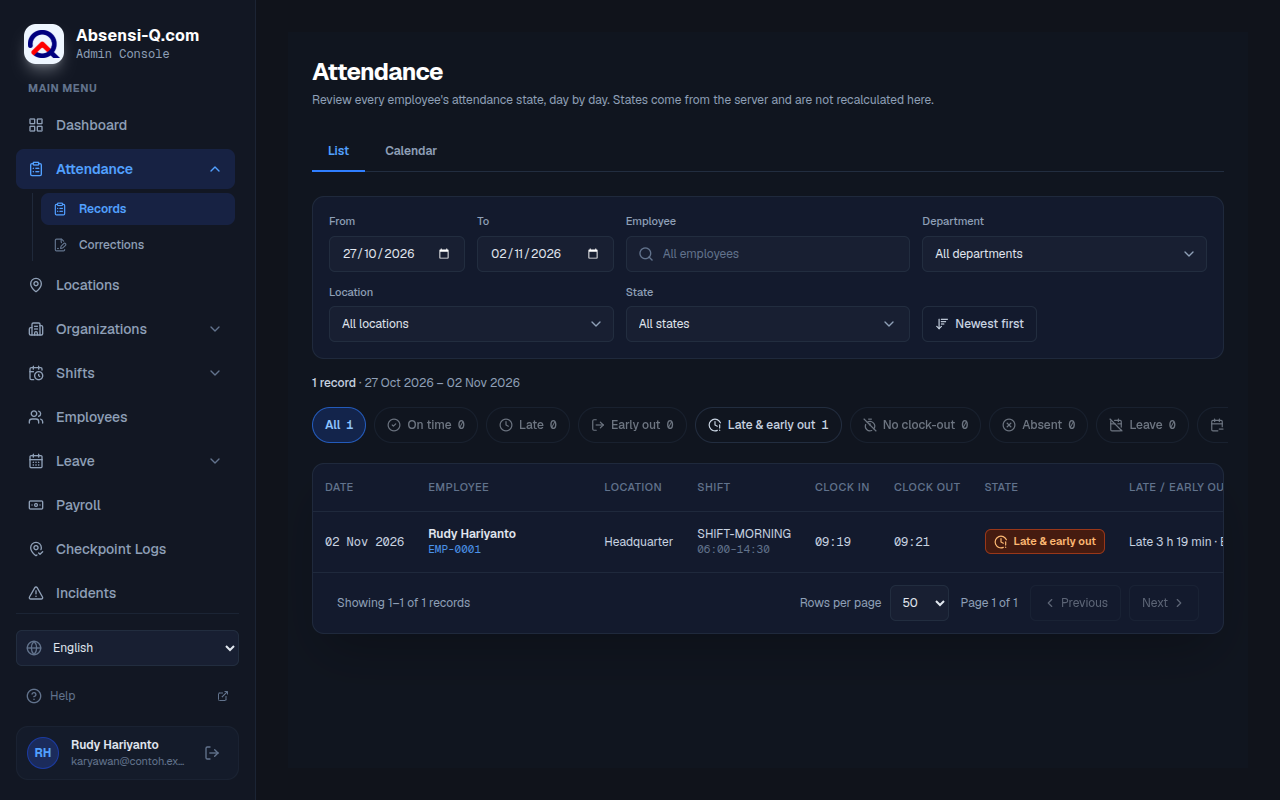
- In the menu, open Attendance, then Records. The tab List is open.
- Choose the period with From and To. The page starts with the last 7 days. The period can be at most 62 days.
- Narrow the list if you want: choose an Employee, a Department, a Location, or one or more states in State.
- Read the line of numbers above the table. It shows how many records each state has in the period. Press a state to filter by it.
- Read the table: date, employee, location, shift, clock in, clock out, state, and late or early minutes.
- To start again, press Reset filters.
Records appear when employees clock in from the employee app. A day with a mark Corrected was changed by an approved correction request.
Use the monthly calendar
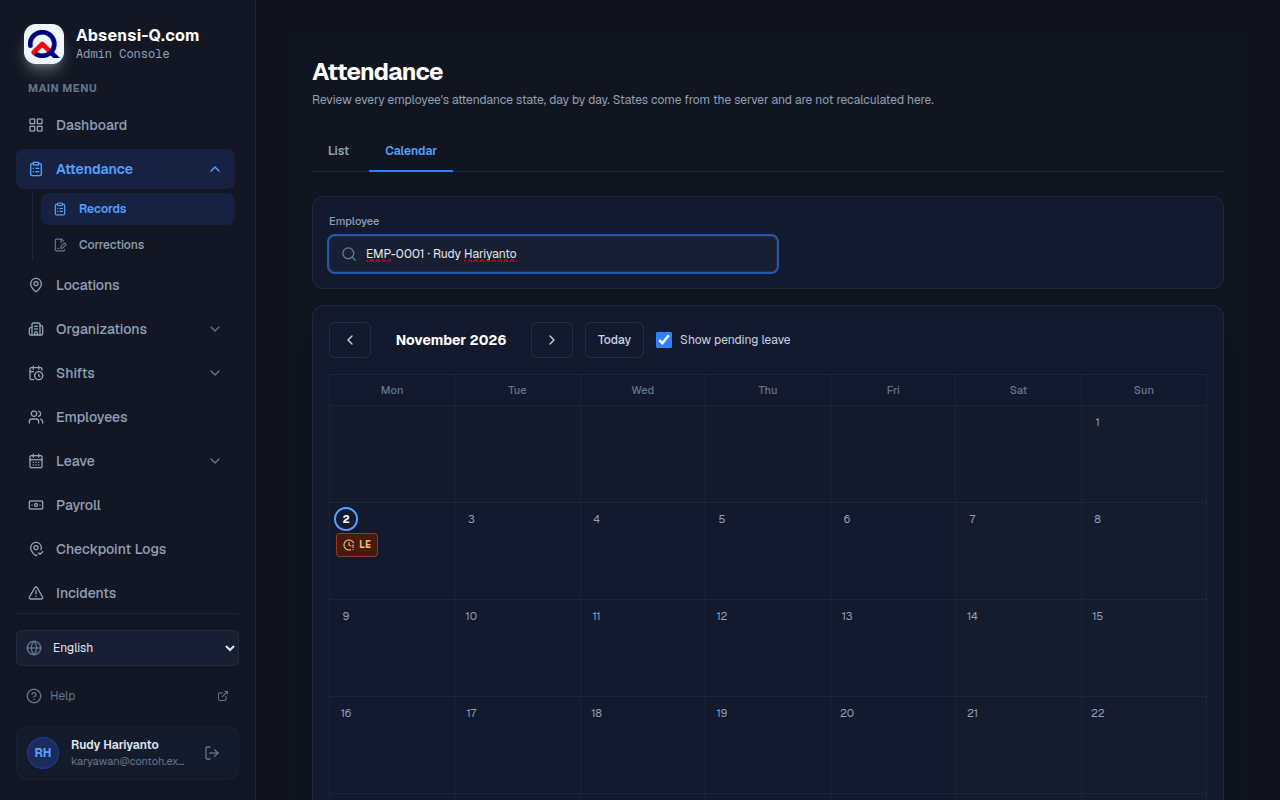
- On the page Attendance, press the tab Calendar.
- Choose an employee. The calendar shows one employee at a time.
- Use Previous month, Next month and Today to move between months.
- Each day shows a mark for its state. Hold the pointer over a day to see the clock-in and clock-out times. The legend explains every mark.
- Press a day to see its details: state, shift, clock times, late or early minutes and leave type.
- Turn Show pending leave on or off to show or hide days with leave that is still waiting for approval.
Check selfie and location evidence
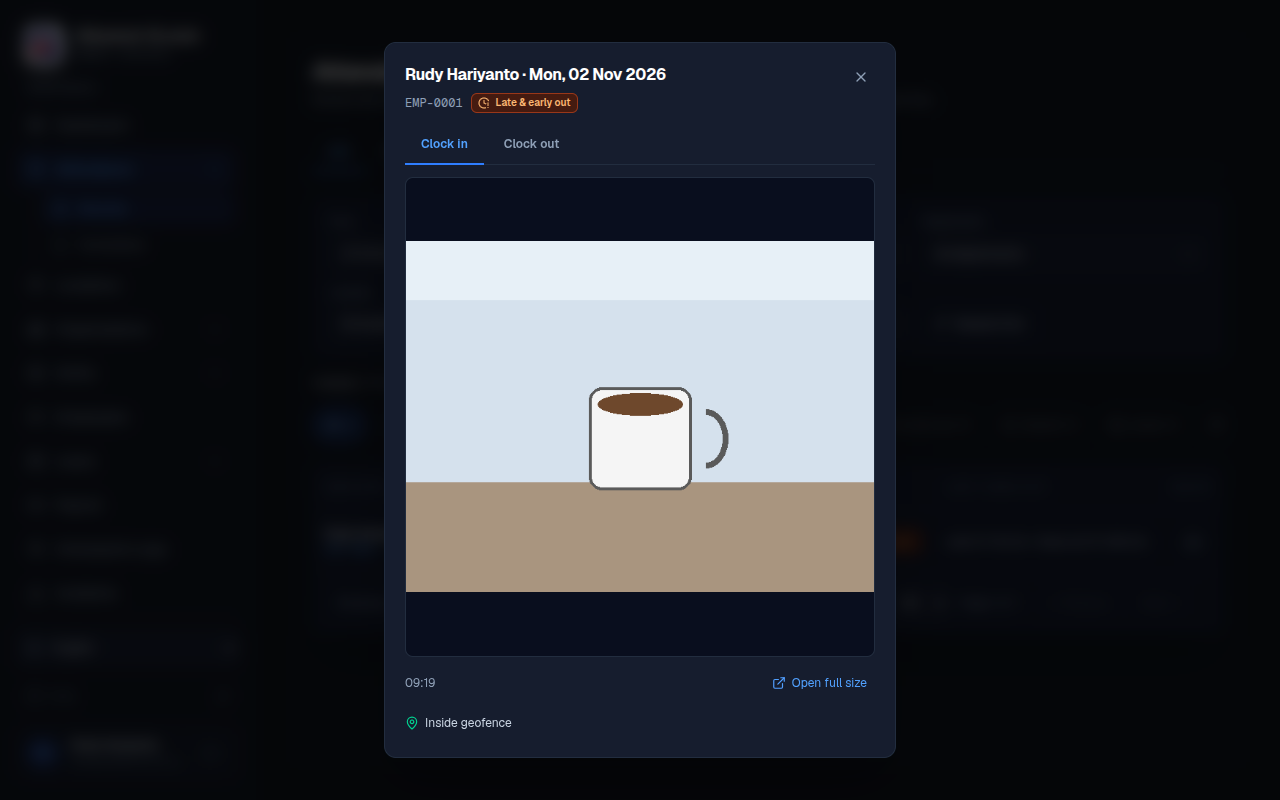
Every clock-in and clock-out from the employee app includes a selfie (a photo that the employee takes of their own face) and the position of the phone. You can check them in the list of records.
- In the list of records, press the picture in the column Selfie of the day you want.
- A window opens with two tabs, Clock in and Clock out. Each tab shows the photo.
- Look at the label under the photo: Inside geofence or Outside geofence. It says whether the phone was inside the clock-in area.A geofence is the clock-in area drawn on the map. If you need a larger picture, press Open full size.
Review correction requests
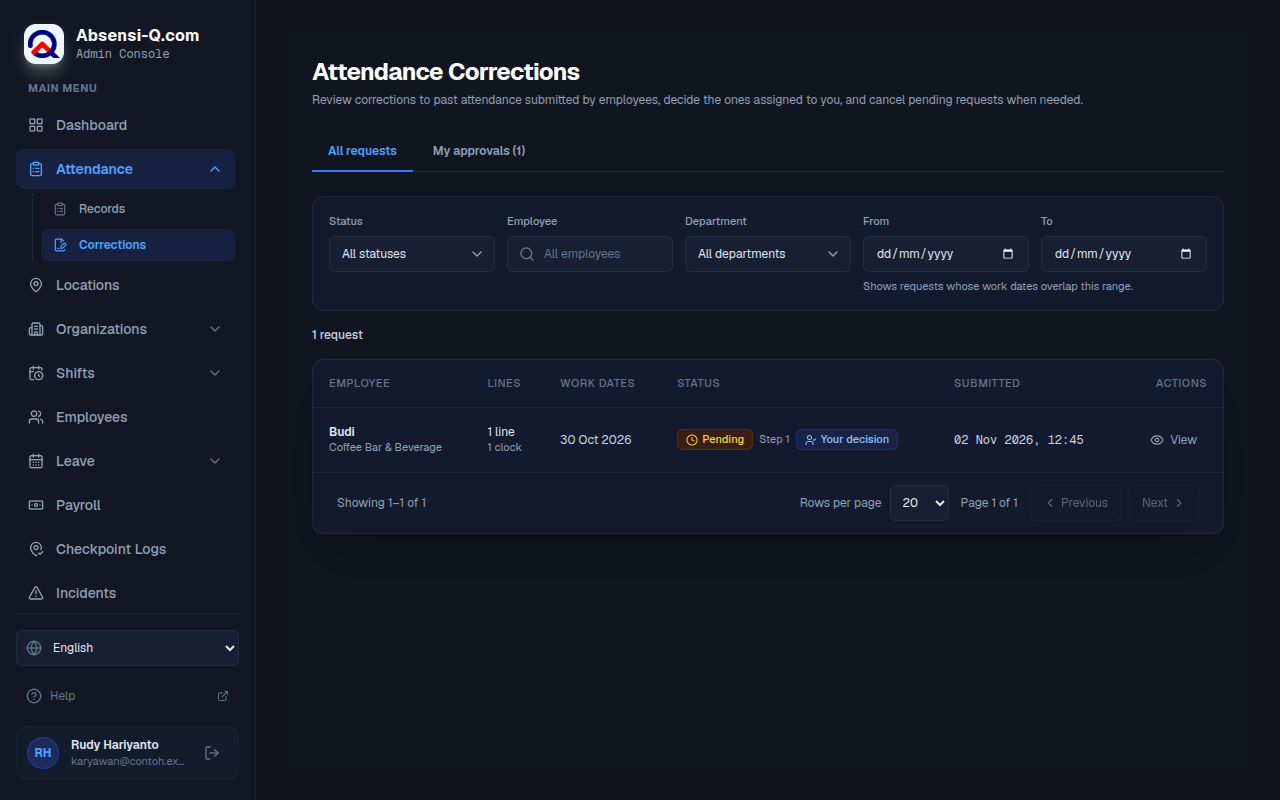
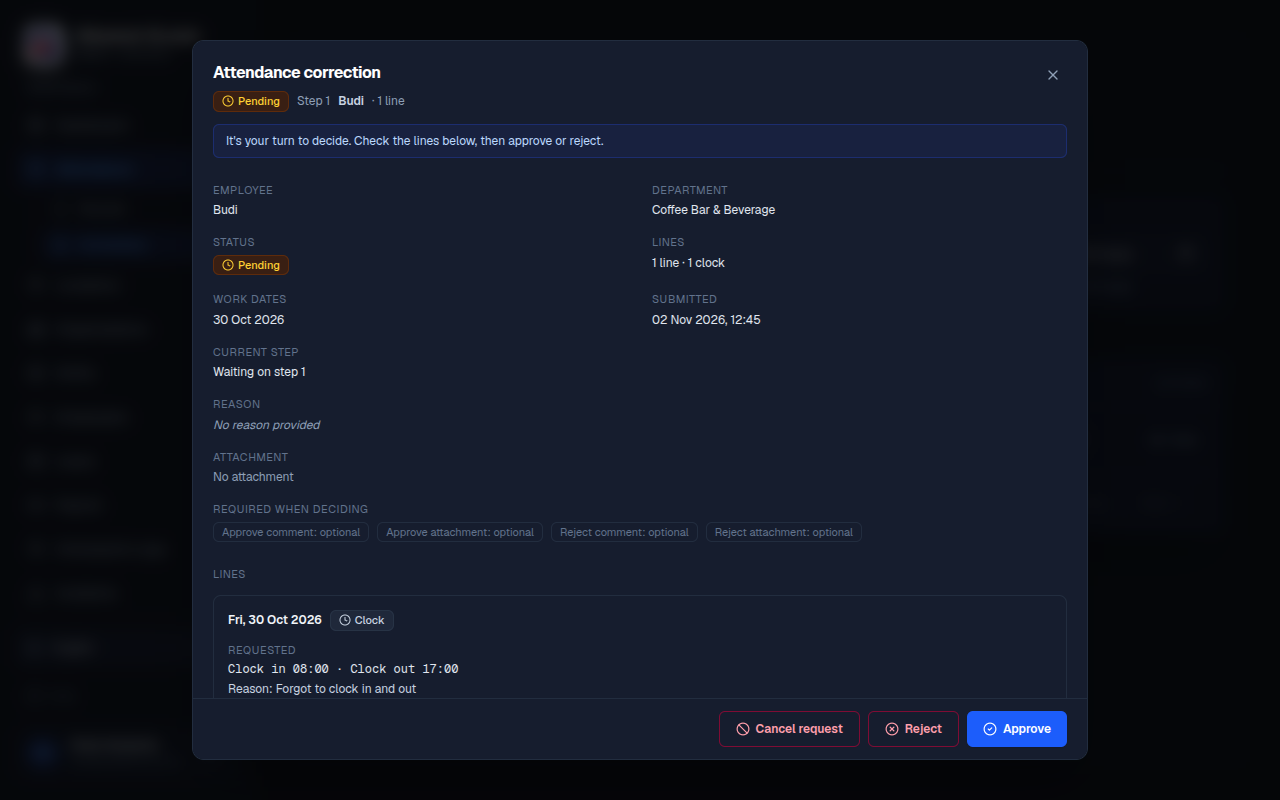
An employee can ask to correct past attendance, for example when the employee forgot to clock out. The request reaches the people who approve it.
- In the menu, open Attendance, then Corrections.
- The tab All requests shows every request. The tab My approvals shows requests that wait for your decision. Filter by status, employee, department or dates if you need.
- Press View on a request to read the details: the lines to correct, the old and new values, the approval steps and the history.
- Press Approve or Reject. A window asks you to confirm. Type a comment if the window asks for one, or if you want to explain your decision.
- To withdraw a request that is still waiting, press Cancel request.
To control whether employees can send corrections, how many days back they can go, and who approves, open Settings, then Attendance Correction. Change the settings, then press Save settings. Changes apply to new requests only. Employees cannot send corrections until you turn the option on and save.
If something goes wrong
| What you see | What to do |
|---|---|
| Date range can't be longer than 62 days. | Choose a shorter period, then look at the next period separately. |
| No attendance records yet | Nothing was recorded in the last 7 days. Records appear here when employees clock in from the employee app. |
| No records match your filters | Choose a different period, employee, department, location or state, or press Reset filters. |
| Couldn't load attendance records | Check your connection, then press Retry. |
| The calendar shows no records for the month | Choose another month or another employee. |
| A late arrival looks wrong | Check the time zone of the employee's location in the locations page. Lateness is worked out in that time zone. |
Swipe sideways to see the whole table.