Before you start
A subscription is your plan for using Absensi-Q. A plan sets limits, such as how many employees and how many locations your company can have. You pay for a paid plan by bank transfer.
An invoice is a bill. It shows what you must pay, for which plan, and by which date. A receipt is the proof of your bank transfer, as a photo or a screenshot.
- Only owners and admins can open the Subscription page.
- If the page says Subscriptions aren't available yet, nothing is needed from you. Everything else keeps working.
- You need a bank account to make the transfer, and a photo or screenshot of the transfer receipt.
See your plan and its status
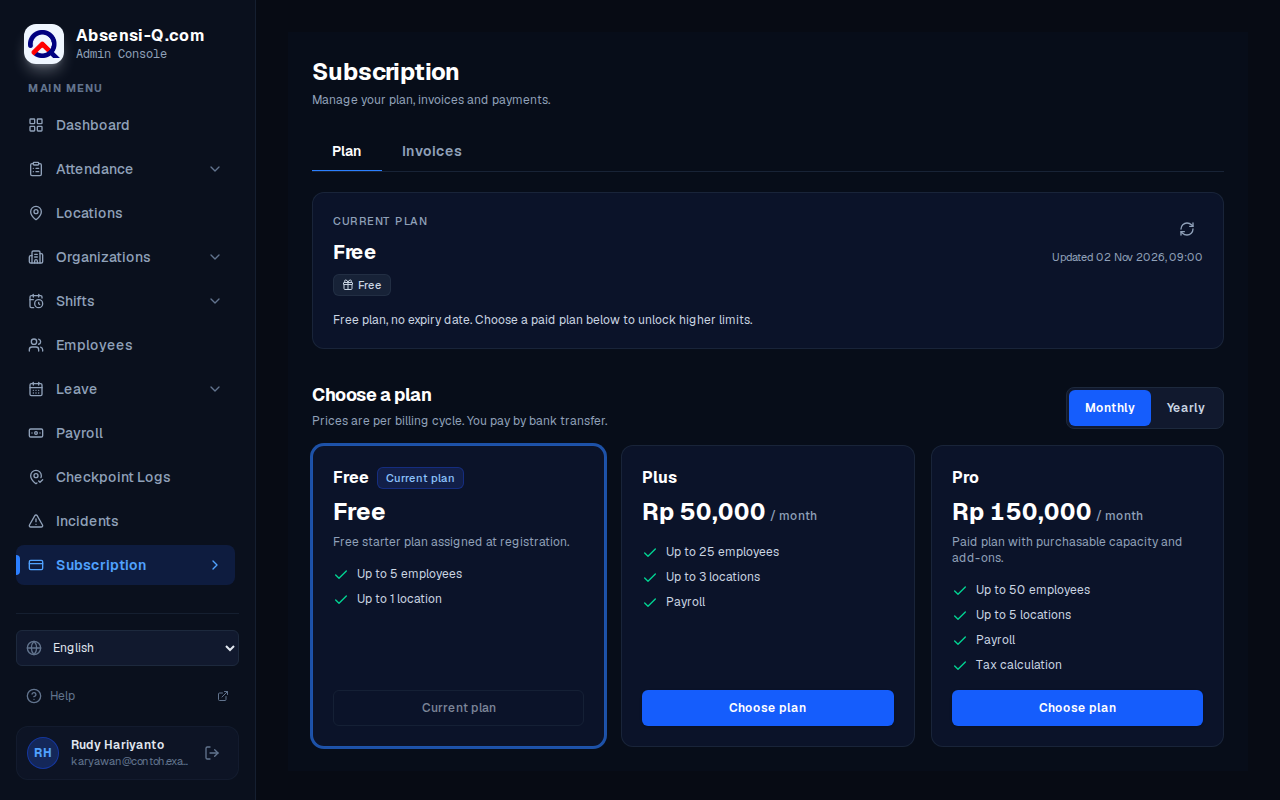
- In the menu, open Subscription. The tab Plan opens.
- Read the card Current plan. It shows the plan name, the price, the current period and the status.
| Status | What it means |
|---|---|
| Active | Your plan is paid and running. |
| Past due | The renewal invoice is not paid yet. Everything keeps working until the grace period ends. The grace period is the extra time that you get to pay. |
| Expired | The plan has ended. Employees cannot sign in until the overdue invoice is paid. Owners and admins can still sign in. |
| No plan | No plan is active. Choose a plan to get started. |
| Free plan | A plan with no expiry date and lower limits. |
Swipe sideways to see the whole table.
The card also shows a countdown, for example the time until the next invoice or until the grace period ends.
The tab Invoices lists all invoices. You can filter them by status or type.
Change your plan
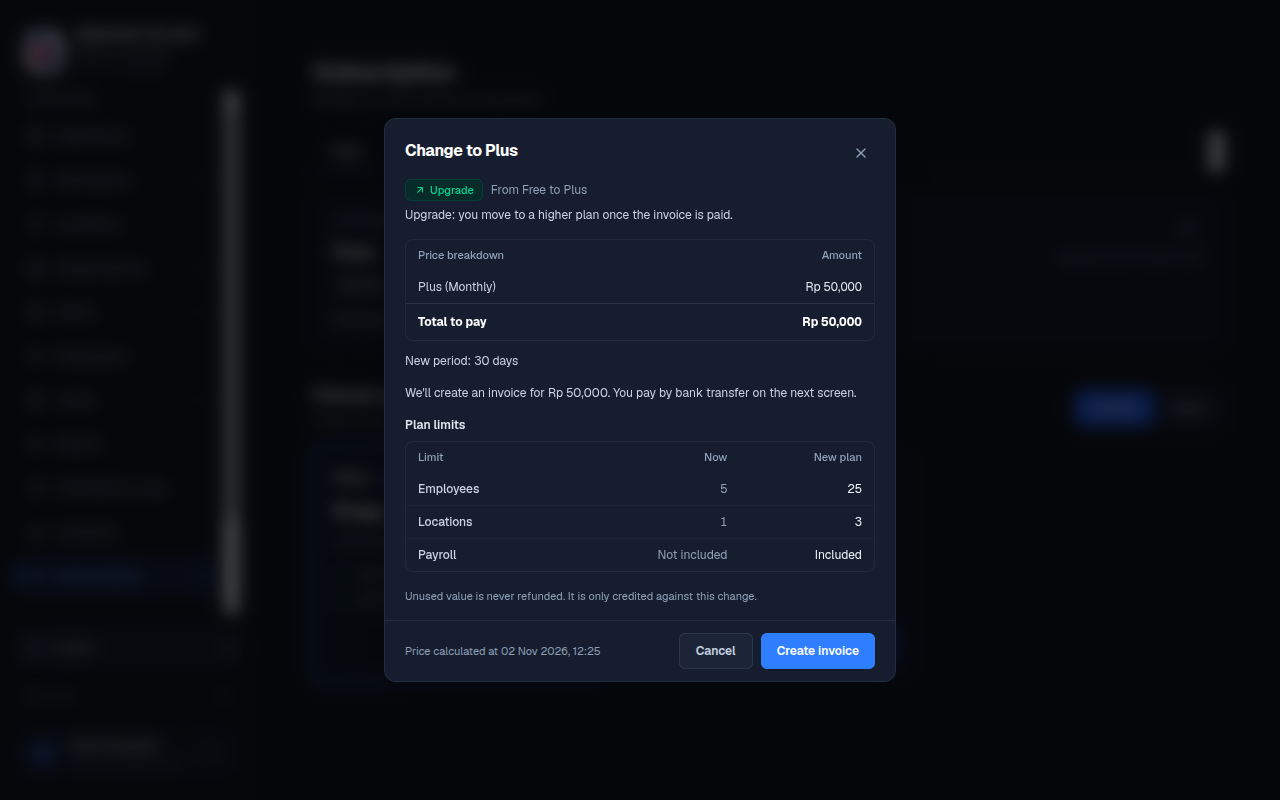
- On the tab Plan, look at the list Choose a plan. Use Monthly or Yearly to choose the billing cycle, which is how often you pay.
- Press Choose plan on the plan that you want.
- A window opens with the price. Read Price breakdown and Total to pay. If you have unused value on your current plan, it is subtracted.
- If you move to a lower plan, your numbers must fit the new limits. If you are over a limit, the window lists what is over. Press Manage employees or Manage locations, set the extra ones to inactive, then press Check again.
- If a box asks you to confirm, read it and tick it. It says that unused credit is not refunded.
- Press Create invoice. If nothing needs to be paid, the button reads Activate plan. For the free plan, it reads Switch to free plan.
- A message says that the invoice is created. Pay it as described below. The new plan starts after your payment is confirmed.
Pay an invoice by bank transfer
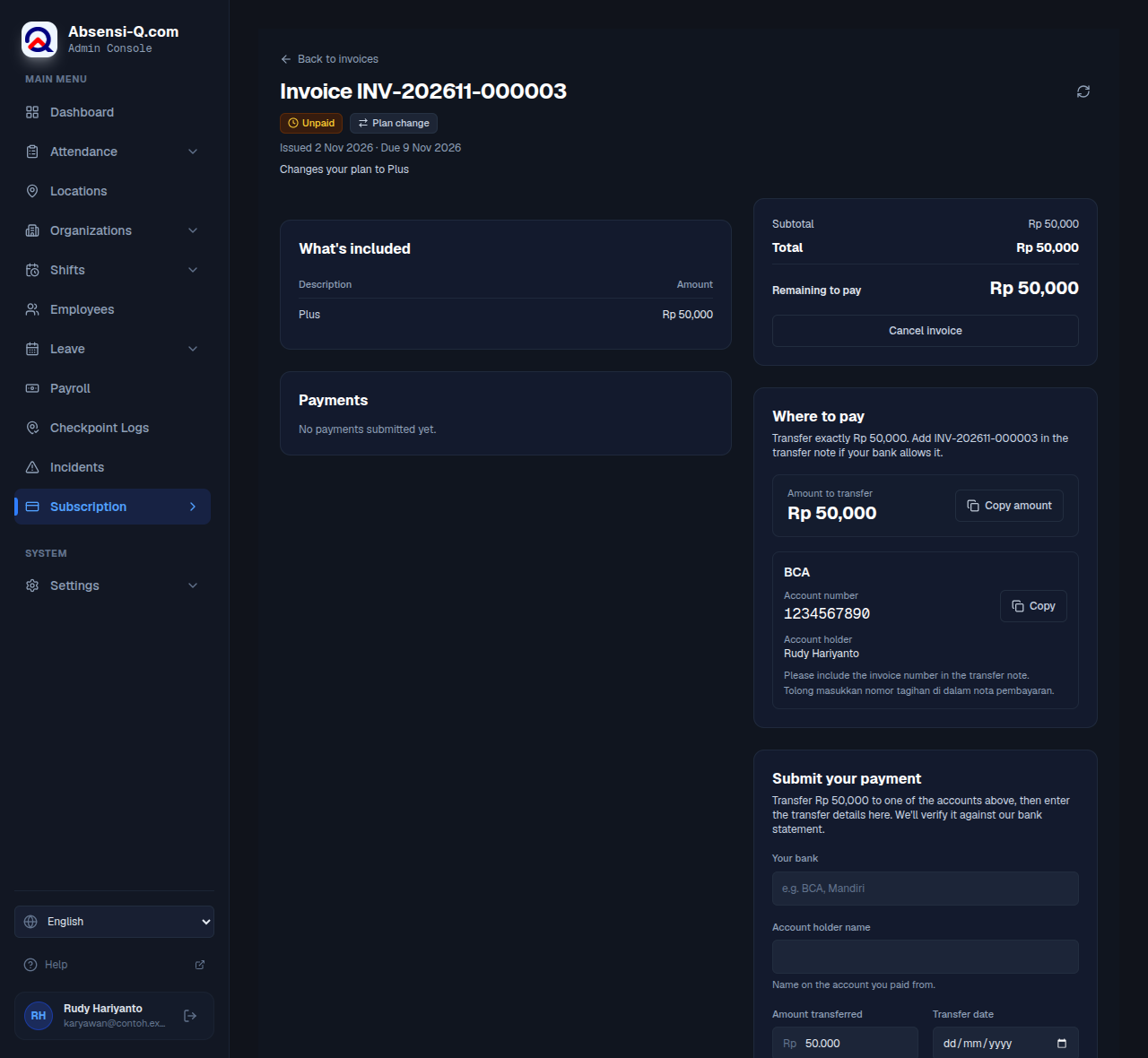
- Open the invoice. In the tab Invoices, press Pay. You can also press Pay invoice on the tab Plan, or Pay now in the banner at the top of the page.
- Under Where to pay, read the bank account details: the account number and the account holder. Press Copy to copy the account number or the amount.Transfer exactly the amount shown. If your bank allows a note, write the invoice number in it.
- Make the transfer with your own bank. This happens outside Absensi-Q.
- Keep the transfer receipt as a photo or a screenshot. It must be a JPG, PNG or WebP image of up to 5 MB.
- Go back to the invoice page. Under Submit your payment, fill in Your bank, Account holder name, Amount transferred and Transfer date.The transfer date cannot be in the future, and it cannot be before the invoice was issued.
- If you want, add a bank reference number in Reference or note (optional).
- Press Choose receipt and select your image. The receipt is required. Photos larger than 5 MB are made smaller automatically.
- Press Submit payment. A progress bar shows the upload. Then the message Payment submitted. We're verifying it. appears.
After you pay
Absensi-Q checks your payment against the bank statement. The invoice page shows the progress and updates by itself.
| Invoice status | What it means | What to do |
|---|---|---|
| Unpaid | No payment has been sent. | Pay the invoice. |
| Awaiting verification | Your payment is being checked. | Wait. You cannot send another payment or cancel the invoice meanwhile. |
| Partly paid | Part of the amount was accepted. | Pay the remaining amount shown on the invoice. |
| Paid | The invoice is paid in full. Your plan continues. | Nothing. You can view the receipt under Payments. |
| Canceled or Expired | The invoice is closed and does not need to be paid. | If you still need the plan, choose it again. |
Swipe sideways to see the whole table.
If a payment is rejected, the invoice page shows the reason. Send a new payment with a new receipt. The old receipt cannot be used again.
To cancel an invoice for a plan change that you have not paid, open it and press Cancel invoice. You cannot cancel an invoice after a payment was received, and payments already made are not refunded.
What happens when a payment is late
| Situation | What owners and admins see | What employees see |
|---|---|---|
| Payment overdue, in the grace period | An amber banner: Payment overdue. Your team can keep signing in for a time. Pay the renewal invoice to avoid being locked out. | Nothing changes. Employees can still sign in. |
| The plan has expired | A red banner: Your subscription has expired. Employees can't sign in until the overdue invoice is paid. | They cannot sign in. The message says that the subscription has expired and to ask the company owner or admin to renew it. |
Swipe sideways to see the whole table.
If something goes wrong
| What you see | What to do |
|---|---|
| Add your transfer receipt to continue. | Choose an image of your receipt before you press Submit payment. |
| This receipt is larger than 5 MB. Choose a smaller photo or take a screenshot instead. | Take a screenshot of the transfer, or choose a smaller photo. |
| This file can't be used. Choose a JPG, PNG or WebP image. | Choose an image file. PDF files are not accepted. |
| The transfer date isn't valid. | Choose a date that is not in the future and not before the invoice was issued. |
| The receipt couldn't be uploaded. Check your connection and try again. | Check your internet connection and press Try again. |
| The price changed since you saw it. | Read the new total in the window, then confirm again. |
| You're over the limits of the new plan. | Set the extra employees or locations to inactive, then press Check again. |
| You can't change plans while a payment is being verified. | Wait until the payment is reviewed. |
| Bank details aren't available right now. | Do not transfer yet. Contact us using the contact details at the end of this website. |
Swipe sideways to see the whole table.